
The things you thought you lost are still here.
MemorGi is a clipboard manager built for macOS. You hit ⌘C a few hundred times a day and every one of them wipes out the last, so MemorGi keeps them one by one. A lyric you wrote down at 3am, the message you never sent, that link you were sure you’d remember. Press ⇧⌘V and they’re all in front of you.
- Your data stays on your Mac
- No account
- Works offline
- 21 themes

- 0
- uploads, ever
- 8
- card looks you recognize at a glance
- 21
- color themes, light and dark
- 3
- languages: English · 繁體 · 简体
You probably hit one of these today.
None of it is a disaster. Just the kind of small annoyance you forget five minutes later, which is exactly why it keeps happening.
Copy something new, lose the old thing
That API key was right there. Then you copied a URL and it’s gone. The window you got it from? Already closed.
“I copied that last week”
You’re sure you did. But which page, which file, which Slack thread? No idea.
Filling one form, switching eight times
Name here, address there, phone number somewhere else. Copy one, paste one, switch back, repeat.
Everything you copy looks different.
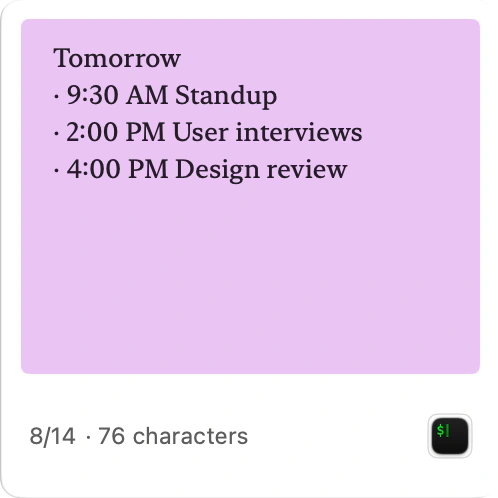
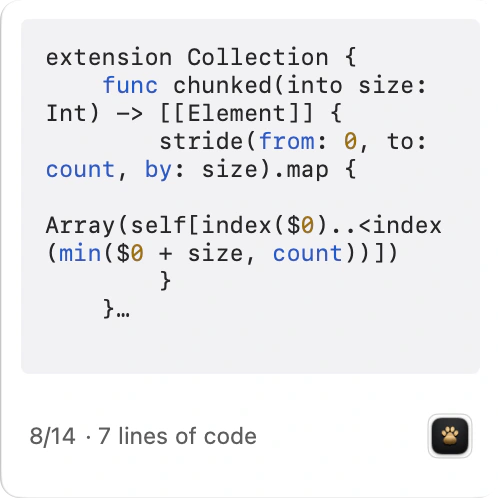
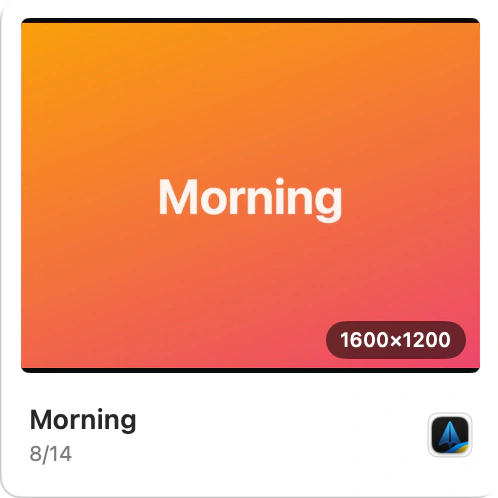
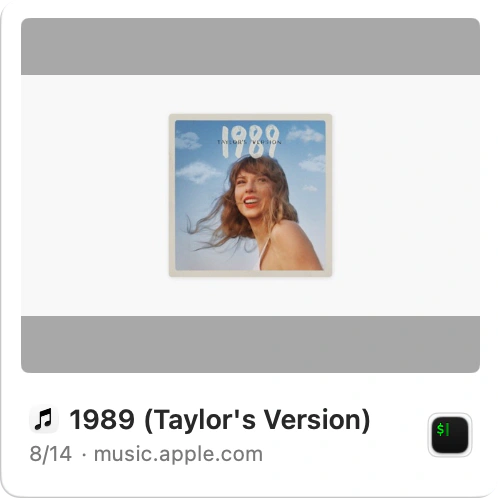
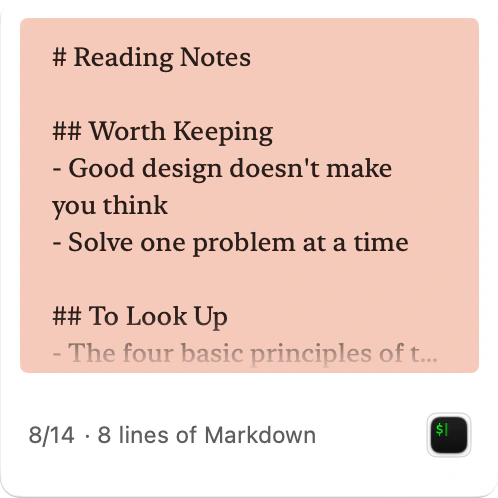
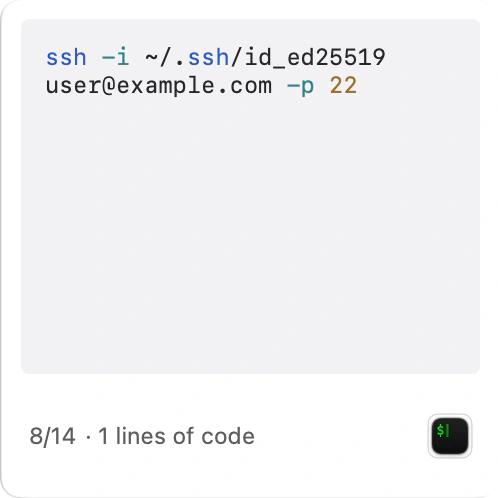
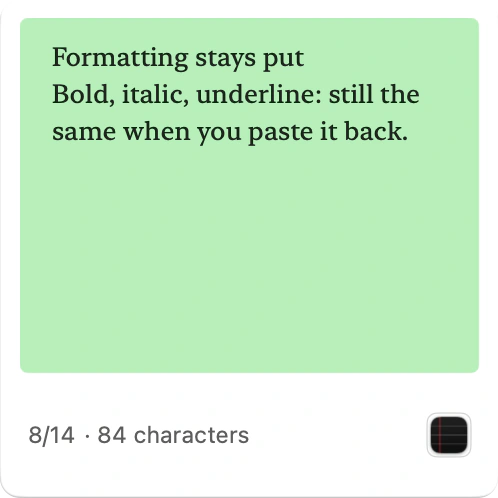
Not everything crammed into the same grey box. A song is its album art, a snippet keeps its syntax colors. You spot it faster than you could read it.
The same desk, under a lamp you like.
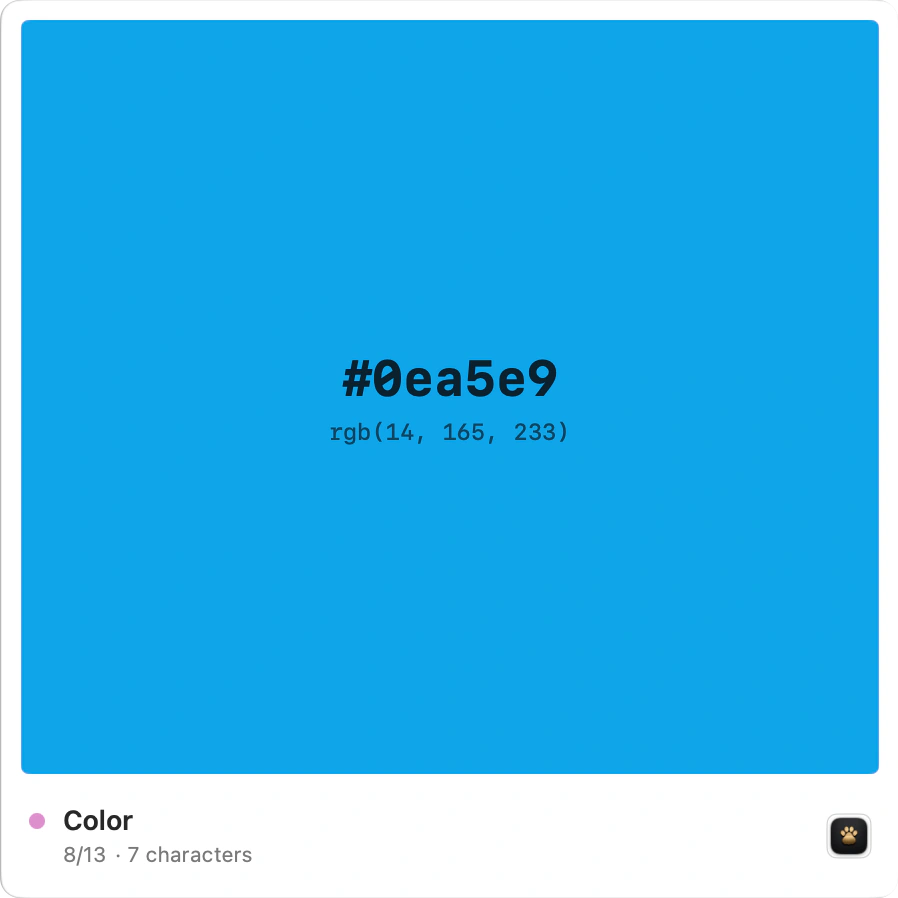
Besides MemorGi’s own black and gold, there are 20 more themes you may know from your editor: Dracula, Nord, Catppuccin, Tokyo Night, and more. Each comes in light and dark and follows your system. What changes is the panel background, the raised layer, and the selection glow. Your cards keep their colors, so you don’t have to relearn how to spot them.
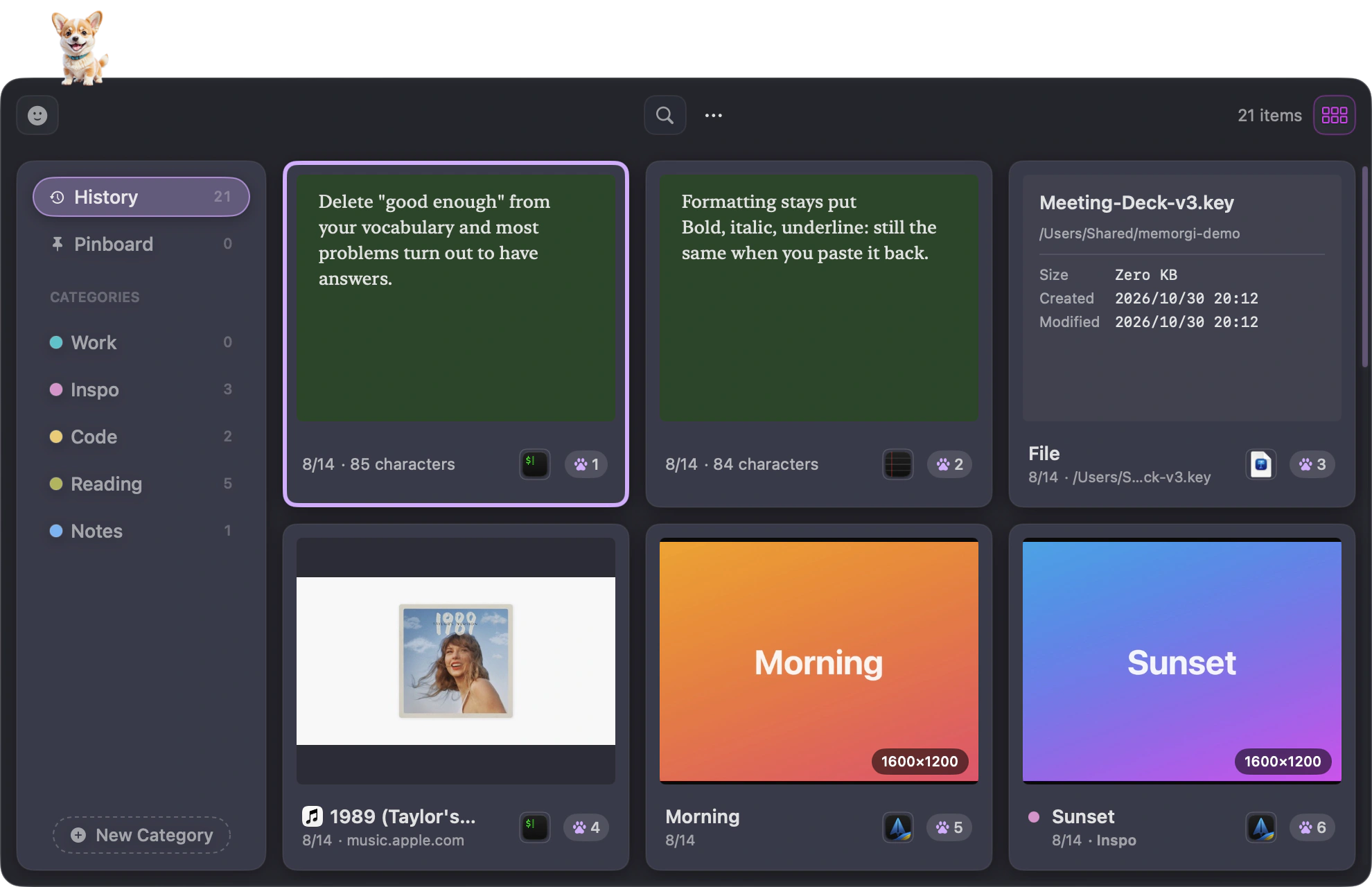
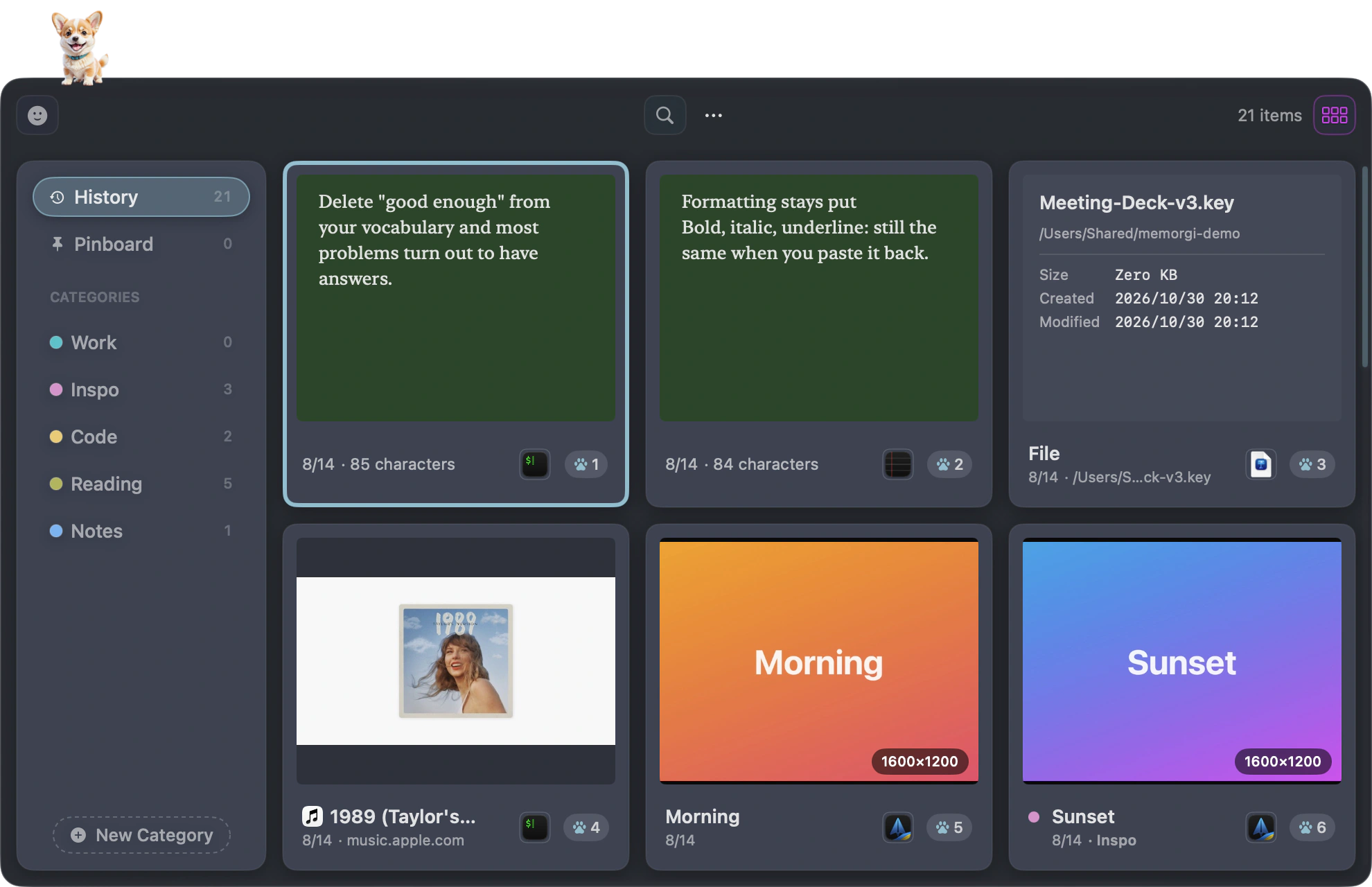
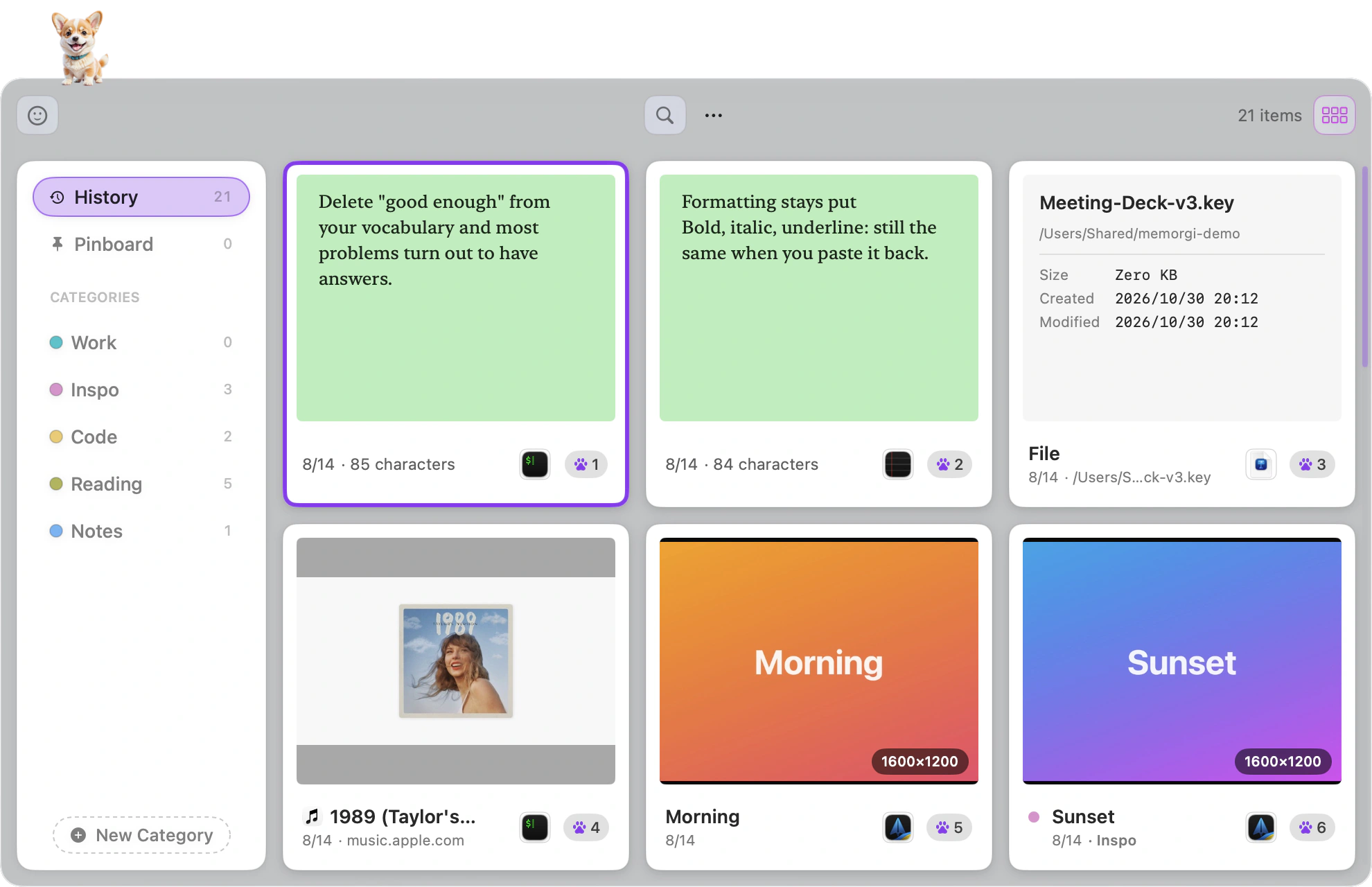
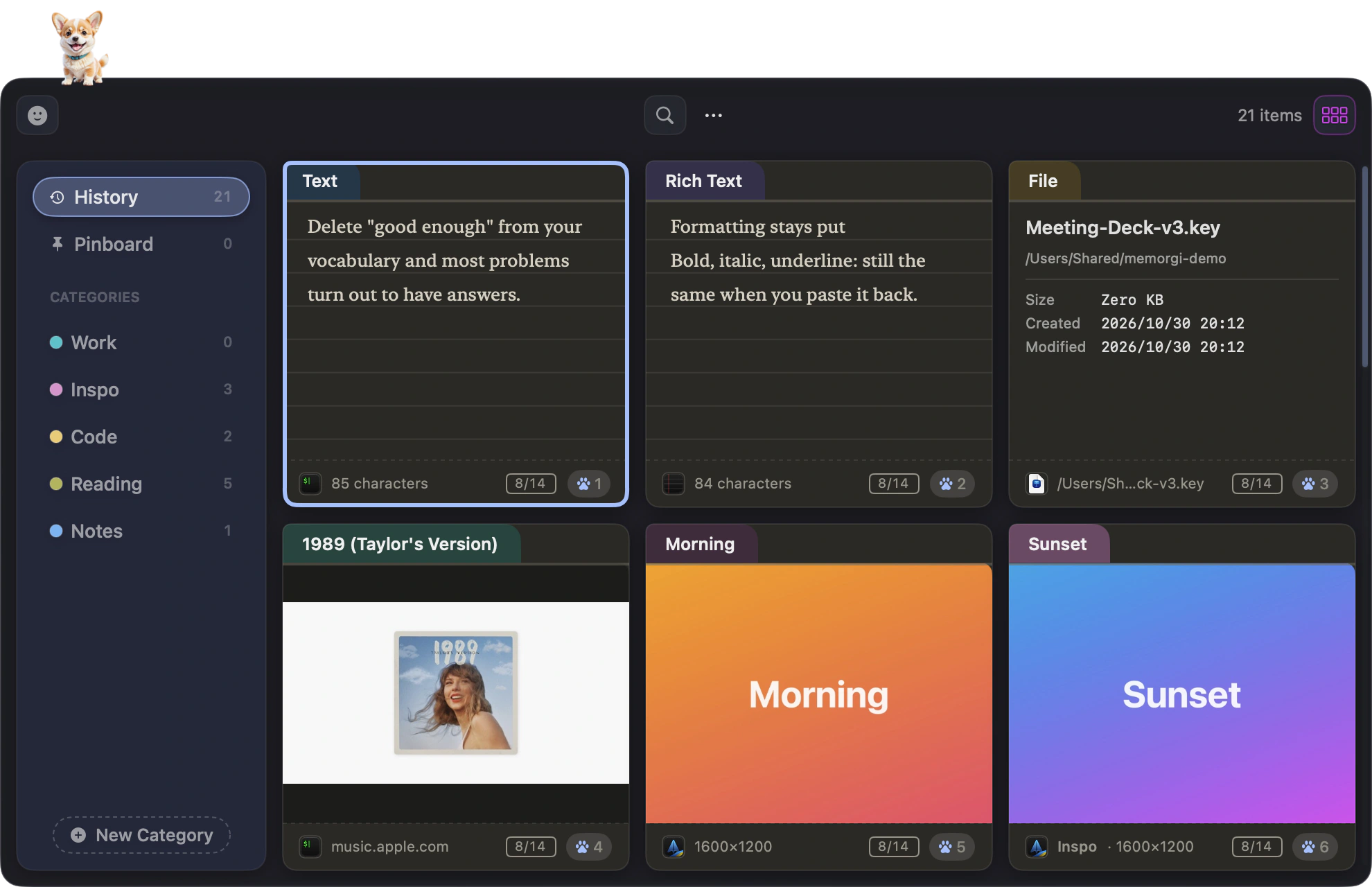
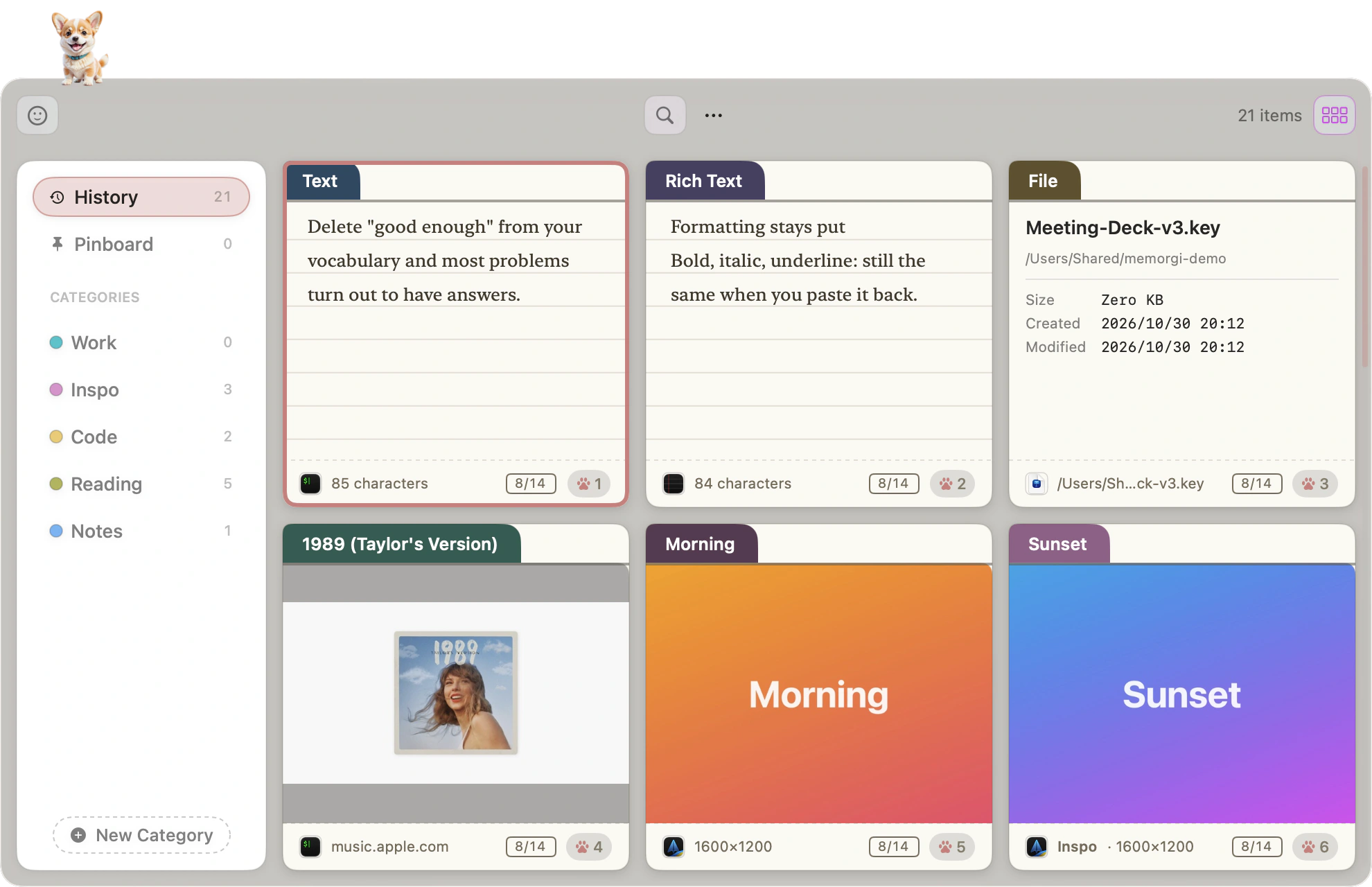
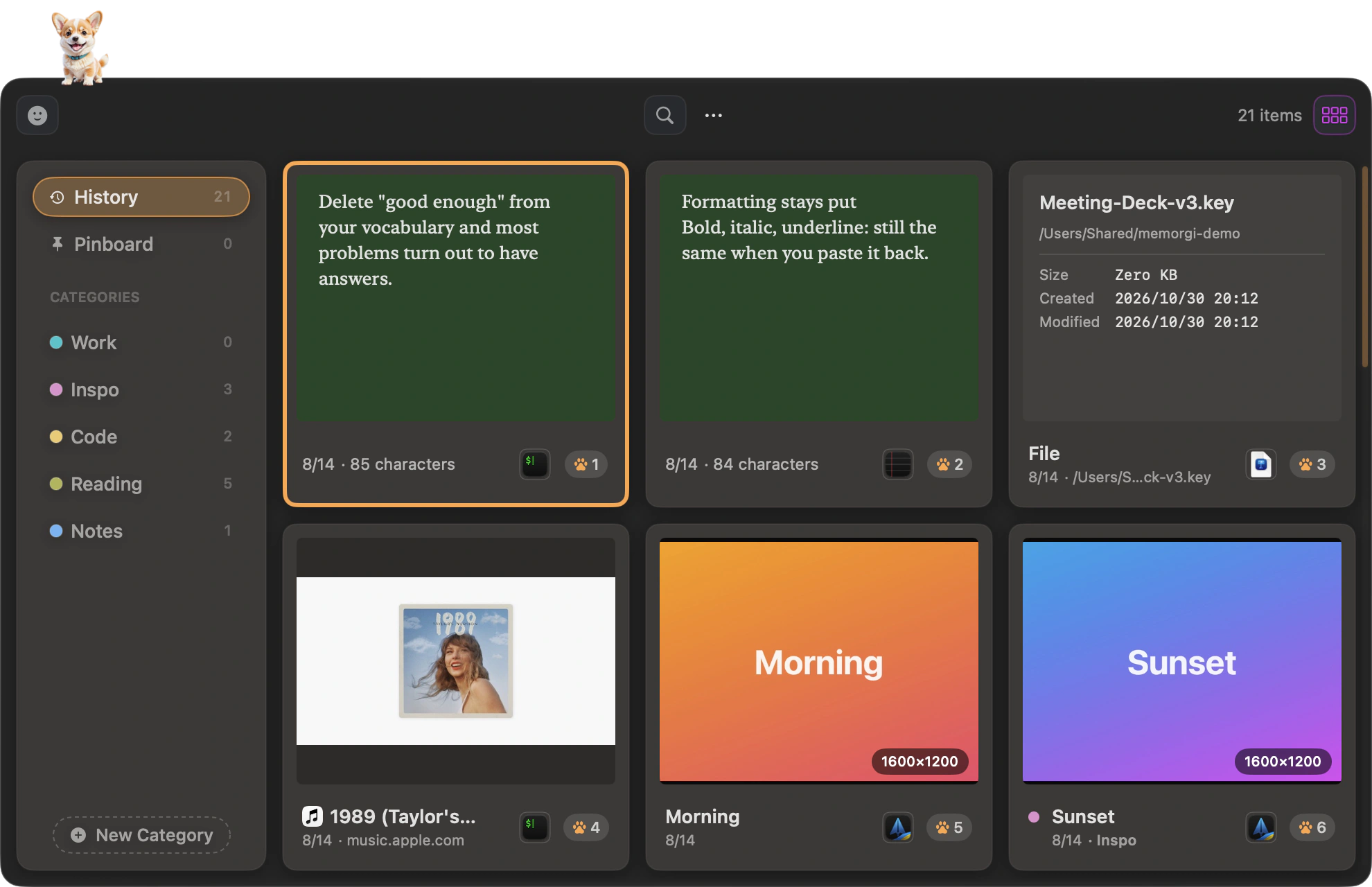
Find it, keep it, paste it, fix it. Four things you do all day.
Search
With the panel open, just start typing. Thousands of clips, three letters to find one. The words inside your pictures are searchable too, and that happens right here on your Mac.
Organize
History is a stream and it ages out on its own. Pinboard is permanent, so anything you pin stays. Categories are yours to make, and one clip can live in all three at once.
Paste
Return pastes back into the app you came from, ⇧Return strips the formatting, and ⌘1 through ⌘9 send cards straight out. Paste Stack lays down a whole batch in order.
Image editing
Crop, rotate, eight filters, six markup tools, one-click background removal. Fix the screenshot and press Return to paste it right back.
The little things you won’t notice, but will feel.
Stays where you put it
Drag the MemorGi window anywhere and it stays there. It only snaps in gently when it’s near a screen edge. Next time you open it, it’s right where you left it.
Permissions at a glance
The Permissions page in Settings lists everything MemorGi needs and whether each one is on. Click the one that’s missing and it takes you to the right page in System Settings.
Nothing from your iPhone, by default
Content that arrives from your iPhone or iPad through Universal Clipboard isn’t recorded by default, and what MemorGi pastes stays on this Mac. Want it? One switch.
Pastes steadily in virtual machines
In Parallels, VMware, or a remote desktop, MemorGi presses keys at a human pace, so it won’t repeat the paste over and over.
You know what’s in there better than anyone.
Passwords, ID numbers, a message you haven’t sent yet, an internal URL from work. None of that belongs on someone else’s server, so MemorGi doesn’t send any of it anywhere.
- No account, because it doesn’t need one
- When it comes from your password manager, the pup looks away
- One switch keeps the panel out of any screen share
- Everything sits in your home folder, and you can pick it up and take it anywhere
Built on this year’s macOS, not last year’s.
Liquid Glass
The new material in macOS 26. The panel refracts, catches light at the edges, and responds to your wallpaper. Older systems fall back to regular translucency.
Swift 6, 16 MB
That’s the whole app. Copying something never makes the interface stutter.
OCR and cutout, on device
Apple’s Vision framework reads the text in your images and separates subjects cleanly, with no network involved.
There the moment you ask
Press ⇧⌘V and the panel is up. Search stays just as fast after tens of thousands of clips.

Meet the MemorGi pup.
It naps on your menu bar and stays out of the way. Press ⇧⌘V and it wakes up, then fetches the card you asked for.
What you copied today, still there next month.
MemorGi 1.0 · macOS 15 and up · native on Apple Silicon