MemorGi Email me at launch

Manual

Everything MemorGi does, on one page. Every entry has a number (No. 101, No. 601 and so on), so you can jump straight to the one you need.

100Getting started

No.101

Install & first launch

Install MemorGi from the Mac App Store. The first time you open it, a six-page tour covers language, welcome, recording consent, permissions, preferences (launch at login, sounds, link previews, iCloud sync), and a quick start. MemorGi won’t record anything until you check “I agree”.
No.102

Open the panel

Press ⇧⌘V to open the panel. You can change the shortcut in Settings. The menu bar icon is a paw print, or a corgi face if you’d rather. Left-click it to open or close the panel, right-click for the menu.

⇧⌘V
No.103

Permissions

MemorGi needs just one: Accessibility, which auto-paste and Paste Stack use. After you turn it on, relaunch the app once. File cards are separate. Because of the sandbox, you pick one folder in Settings › Permissions before file thumbnails and originals show up.

No.104

Languages

The interface comes in English, 繁體中文, and 简体中文. By default it follows your system.

200Capturing

No.201

What gets saved

Text, rich text, images, links, and files. Copy the same thing twice and the existing card jumps to the front instead of making a second one.

No.202

Pause

Press ⌘T, or pause from the menu bar. The menu bar icon changes while recording is paused.

⌘T
No.203

Text in images

Text inside images is recognized on your Mac with Apple Vision, so you can search for it.

No.204

Link previews

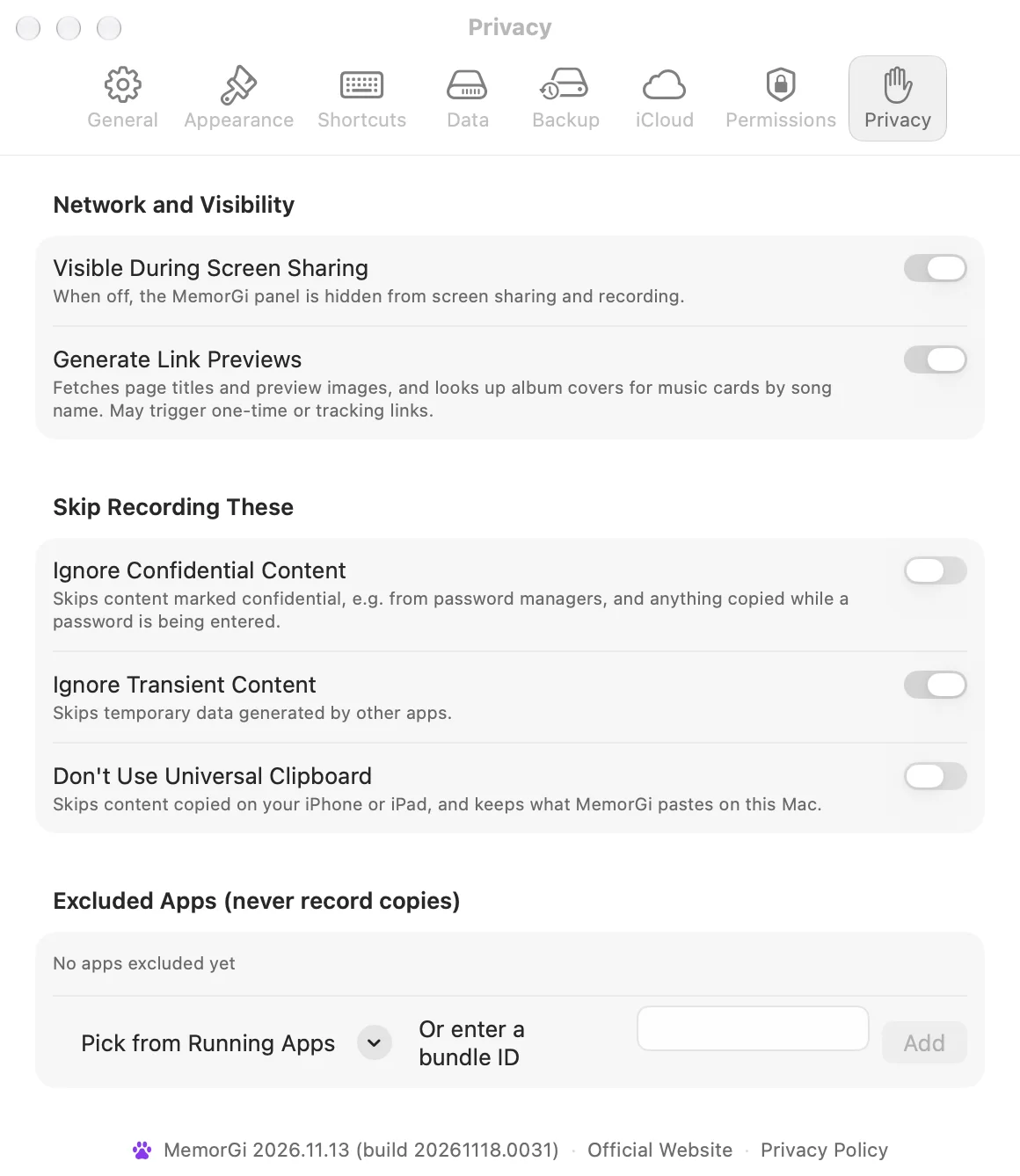
Link cards fetch the site’s title, icon, and preview image. YouTube links use the official thumbnail. You can turn this off in Settings › Privacy. Internal network addresses are never sent.

No.205

What MemorGi skips

You can exclude specific apps. With “Ignore Confidential Content” on, MemorGi skips what password managers copy and anything you copy while typing a password. It’s off by default on a fresh install, and the first-launch tour is where you choose. Temporary clipboard content is skipped by default. Universal Clipboard items from your iPhone are collected by default, and you can turn that off.

300Window & cards

No.301

MemorGi Window

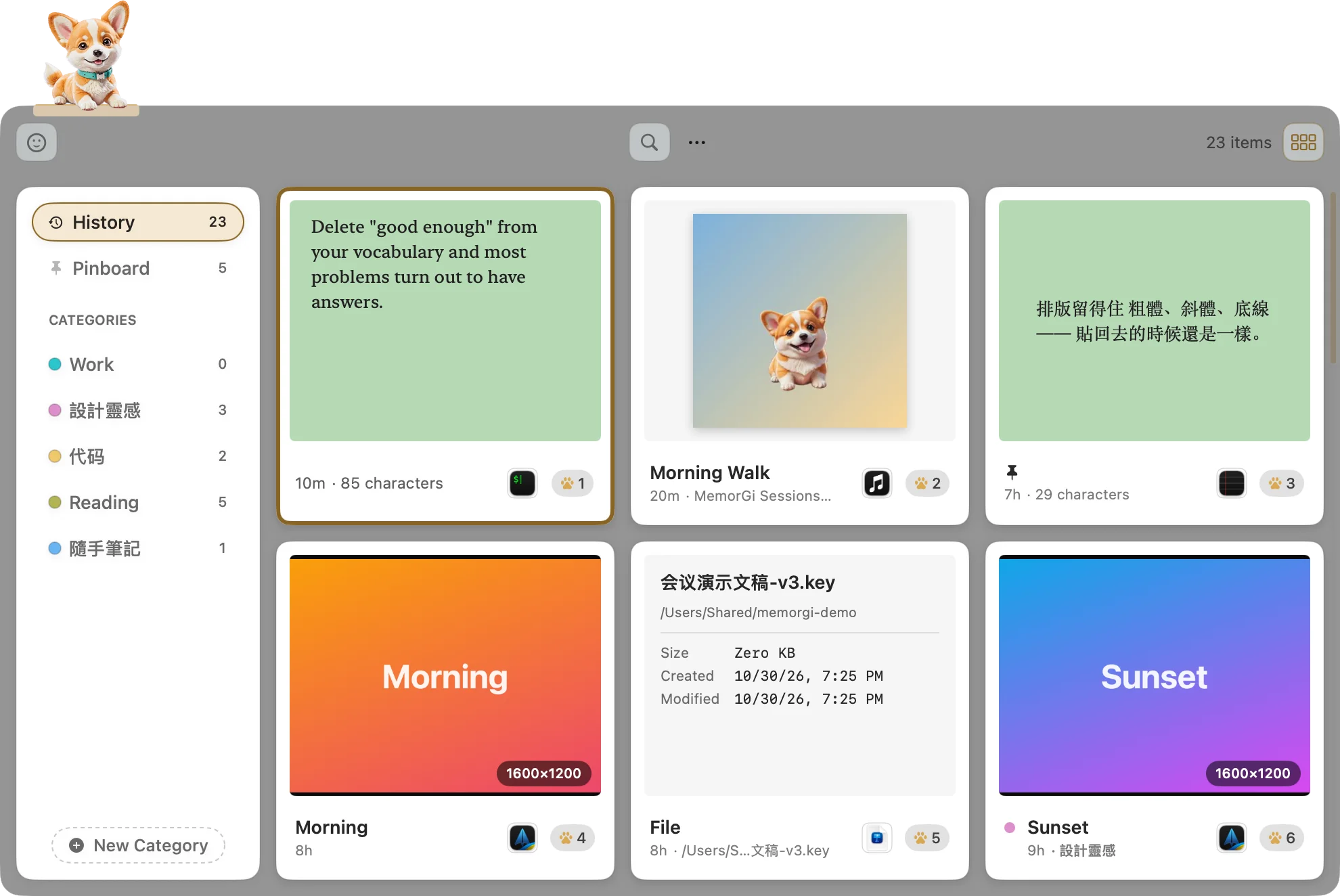
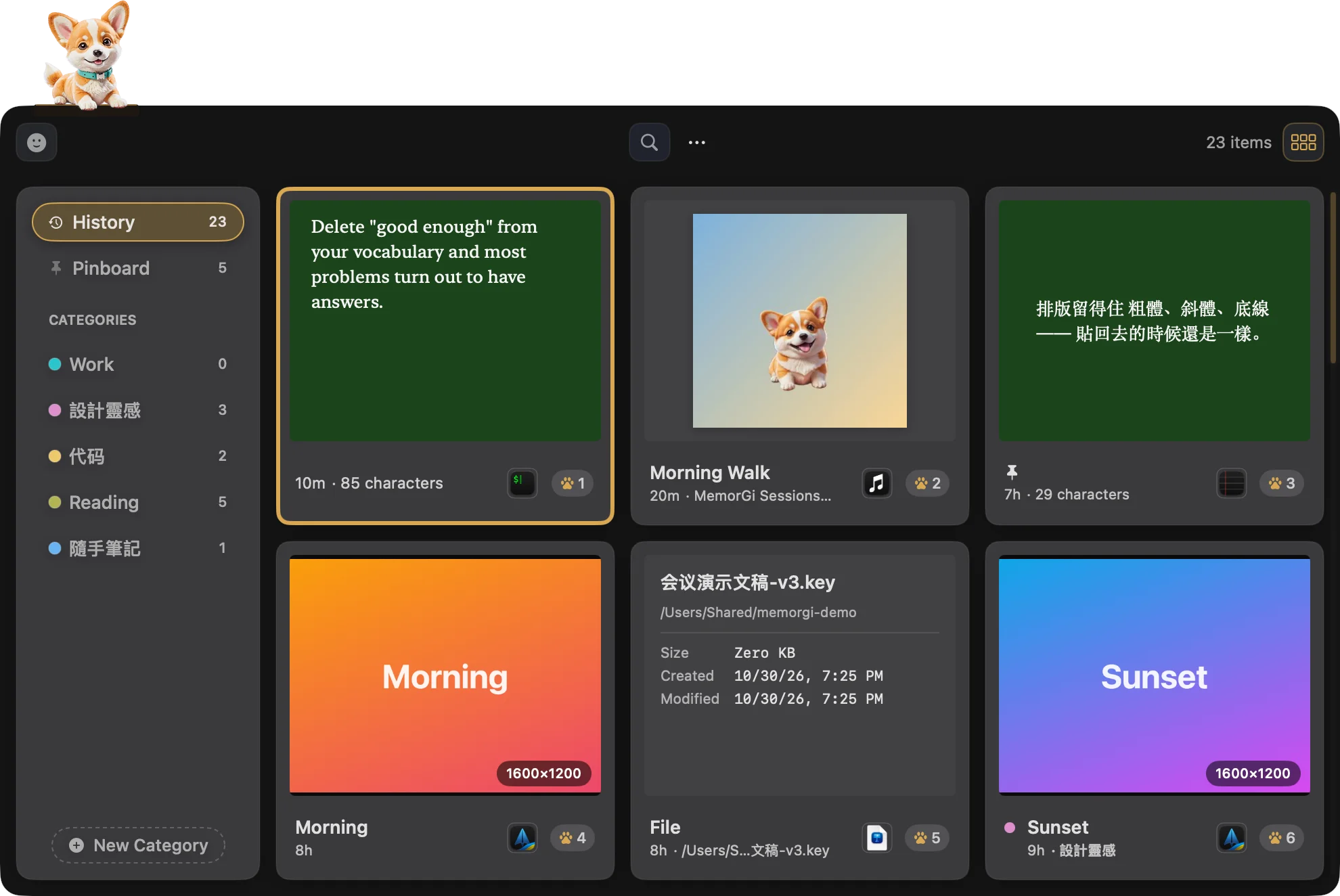
The default layout. It’s a floating window with a category sidebar on the left (with card counts) and three fixed columns of cards that scroll vertically. Drag it anywhere and it stays there. It snaps to the screen corners and the center, and opens in the same place next time. A corgi lounges on the top-left corner of the panel, and you can turn it off.

MemorGi Window
No.302

Classic

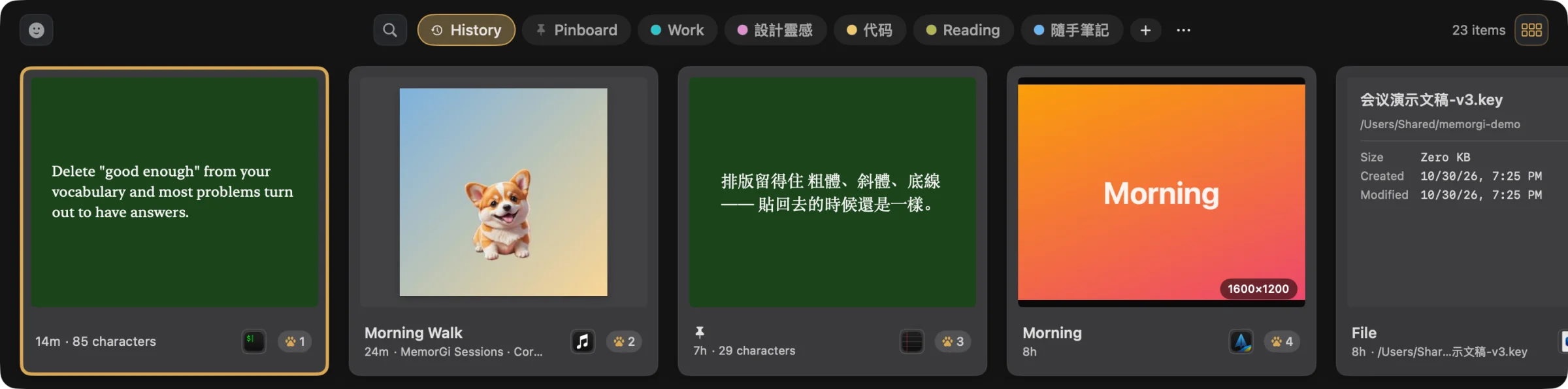
A full-width bar along the bottom of the screen. Cards sit in one row that scrolls sideways, and the category tabs are on the top row.

Classic layout
No.303

Instant Photo cards

The default card style. A white top edge, photo paper, and a caption line underneath. Plain text cards get one of 8 sticky-note colors. Image cards use black photo paper.

Instant Photo cards
No.304

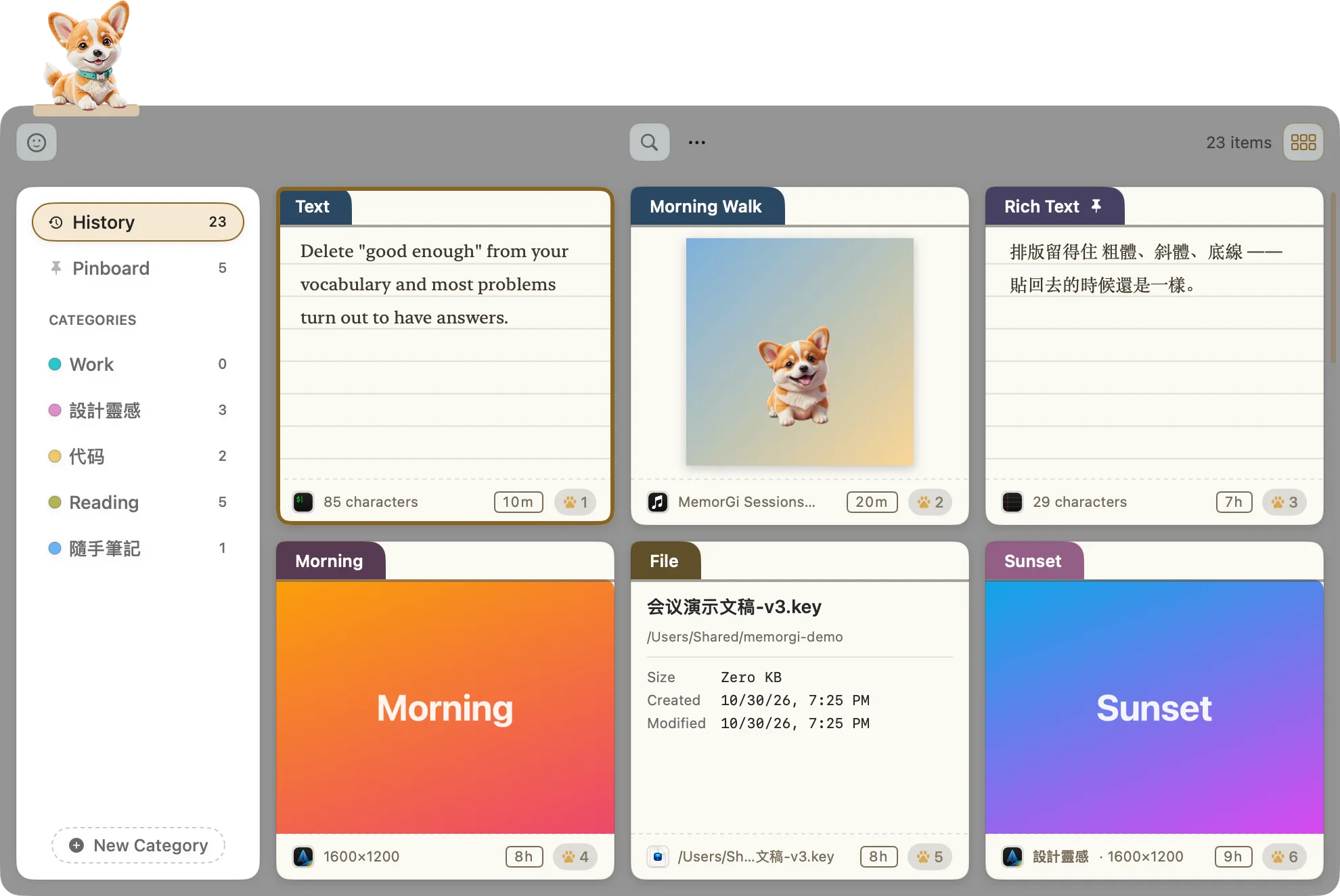
Index Card cards

A tabbed label that grows with the title, ruled paper, and a dashed footnote.

Index Card cards
No.305

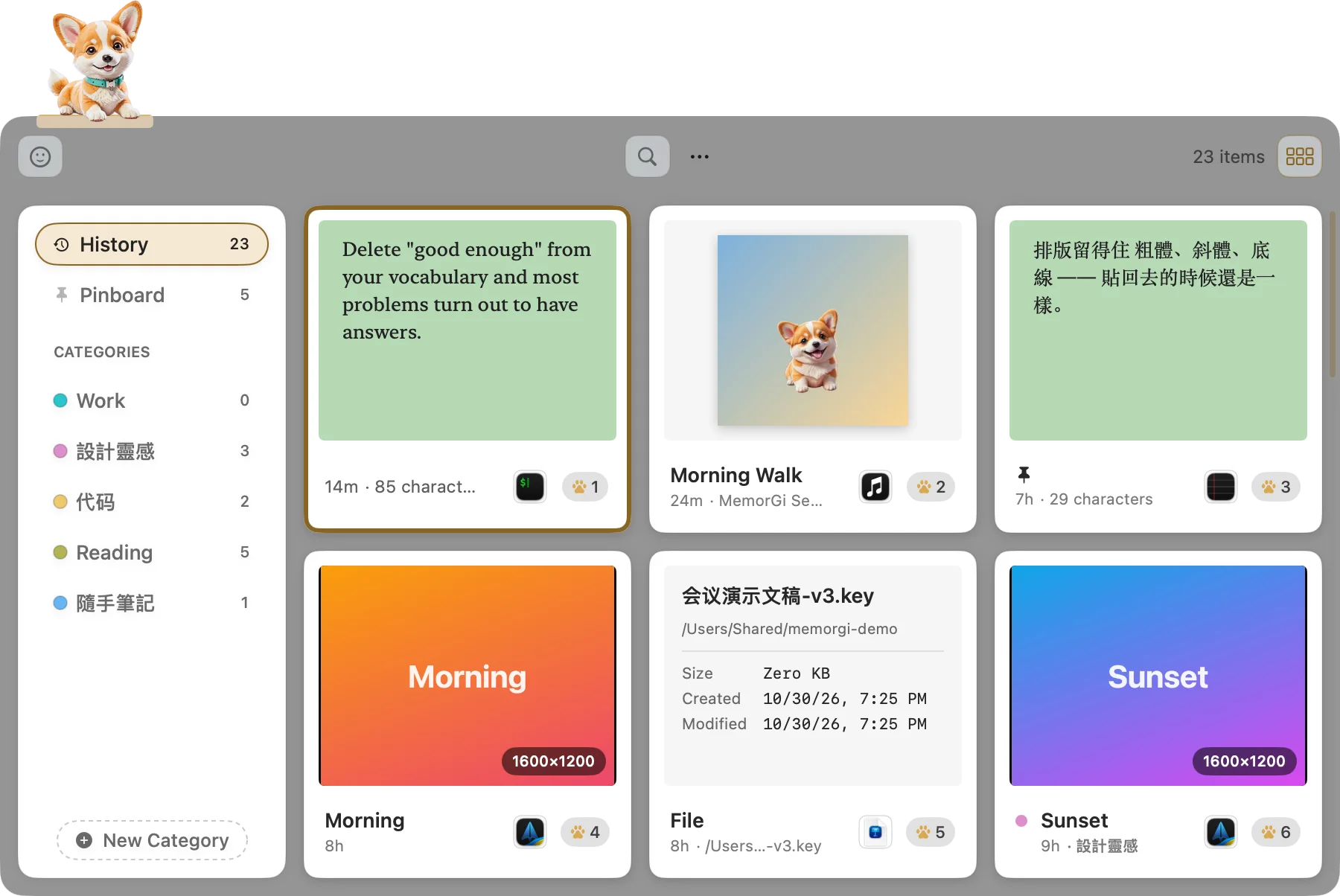
Compact cards

Works in both layouts. Cards get one size smaller, so you see more at once.

Compact cards
No.306

Special cards

Code: terminal look with syntax colors. Color: the whole card is the color, with the code in big type. Link: site icon and preview image. YouTube: official thumbnail. Music: album art for Apple Music and similar links. File: real thumbnails, and multiple files show as a Finder-style list. QR code: shown as an image card, and Space reads what’s inside.

No.307

Card number badge

The number in the bottom-right corner of a card. Hold ⌘ and it turns into a quick-paste hint.

⌘1–9
No.308

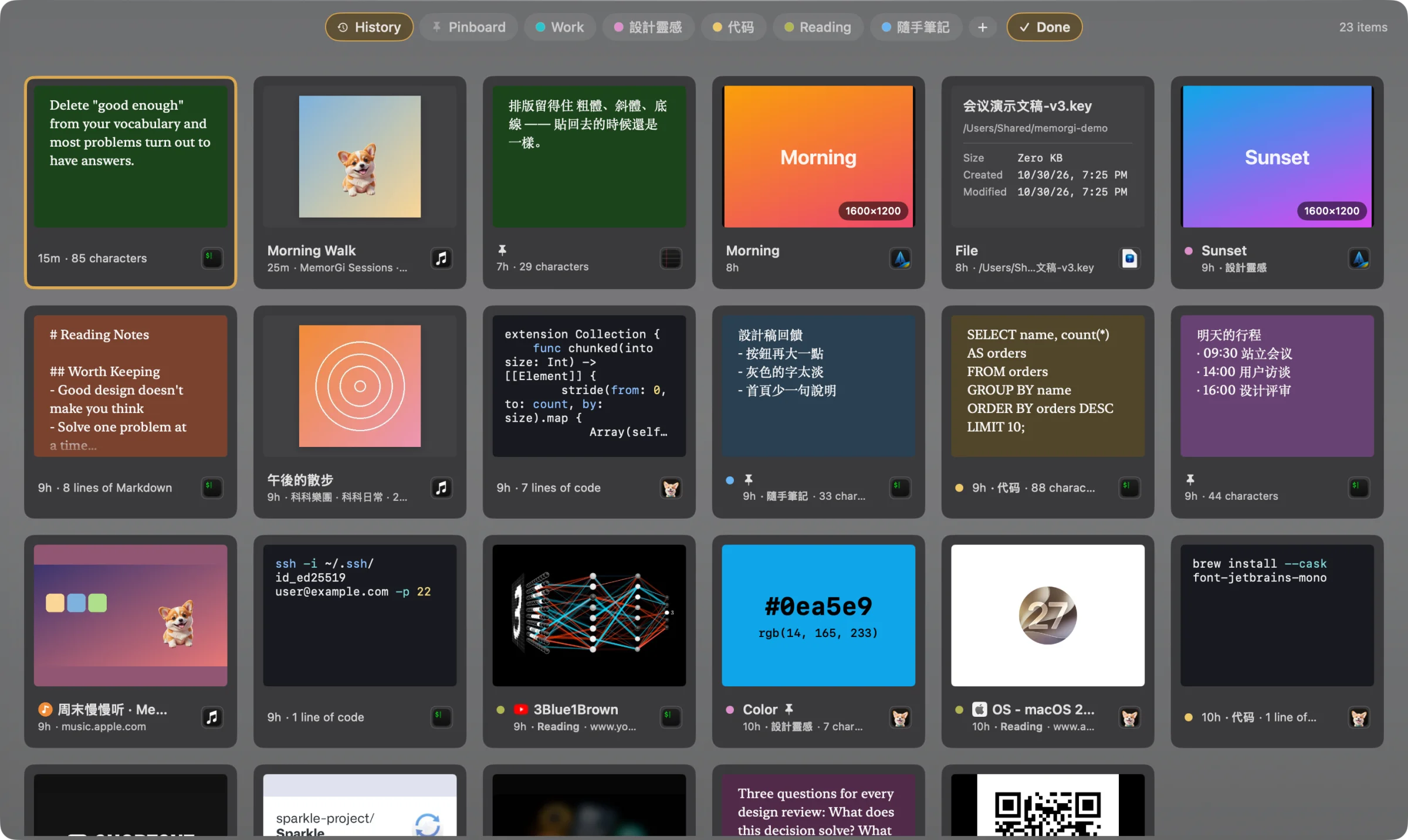
Arrange mode

Open it from the ⋯ menu or the button at the top right. Cards fill nearly the whole screen and you drag them into any order. Esc or Done takes you back.

Esc
Arrange mode
No.309

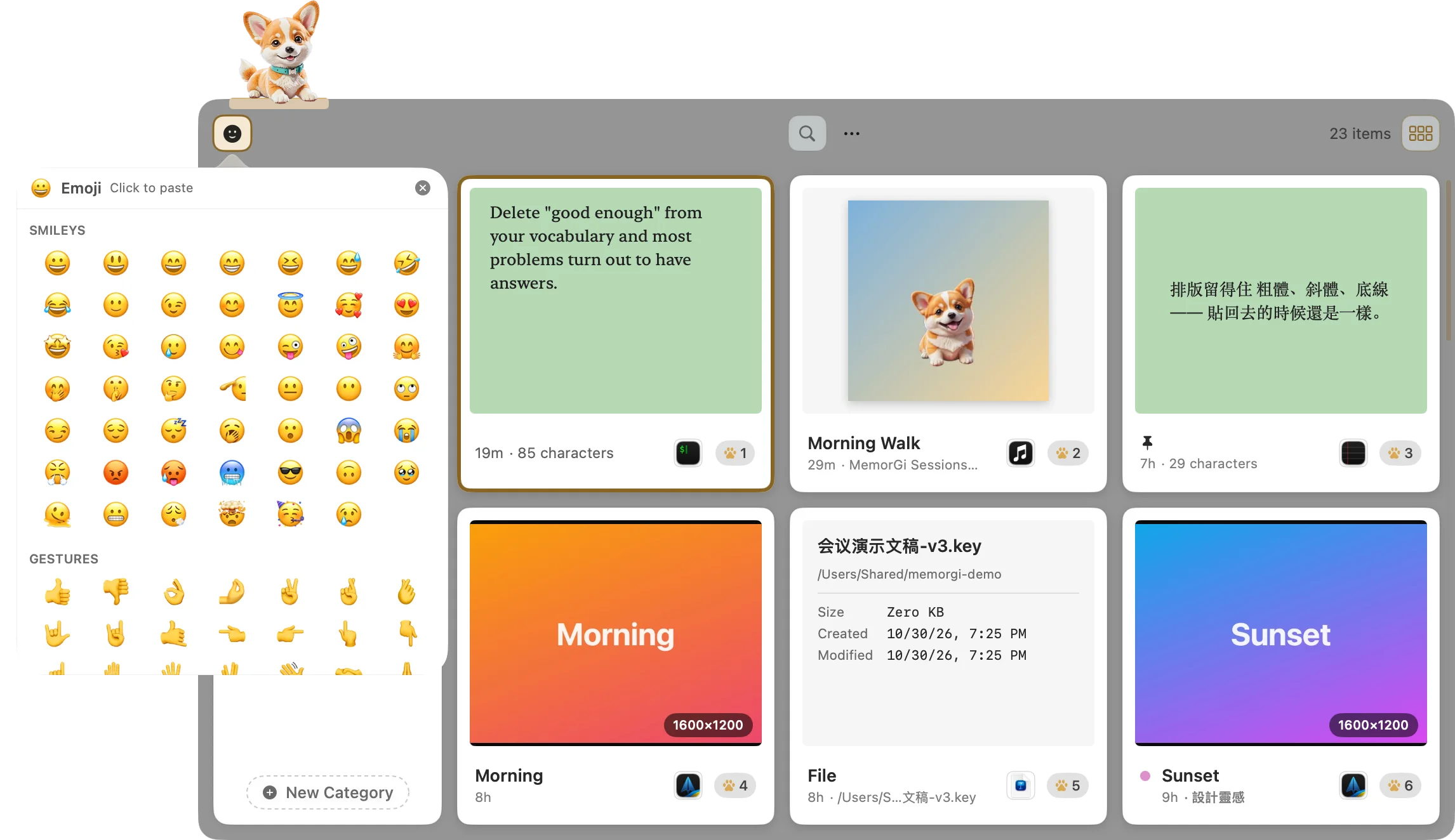
Emoji picker

In Classic it sits in the first slot. In MemorGi Window it’s a button that pops it open. Click an emoji and it pastes straight into your app without going into your history. You can click several in a row.

Emoji picker
No.310

Themes & appearance

17 themes, each with a light and a dark version. Light/dark can follow the system, or be fixed to light or dark, which only affects MemorGi. Hover effects and interface animations can be turned off.

400History, Pinboard & categories

No.401

History

A timeline with the newest first. Set how many items and how many days to keep in Settings › Data. The default is 5,000 items, with no day limit.

No.402

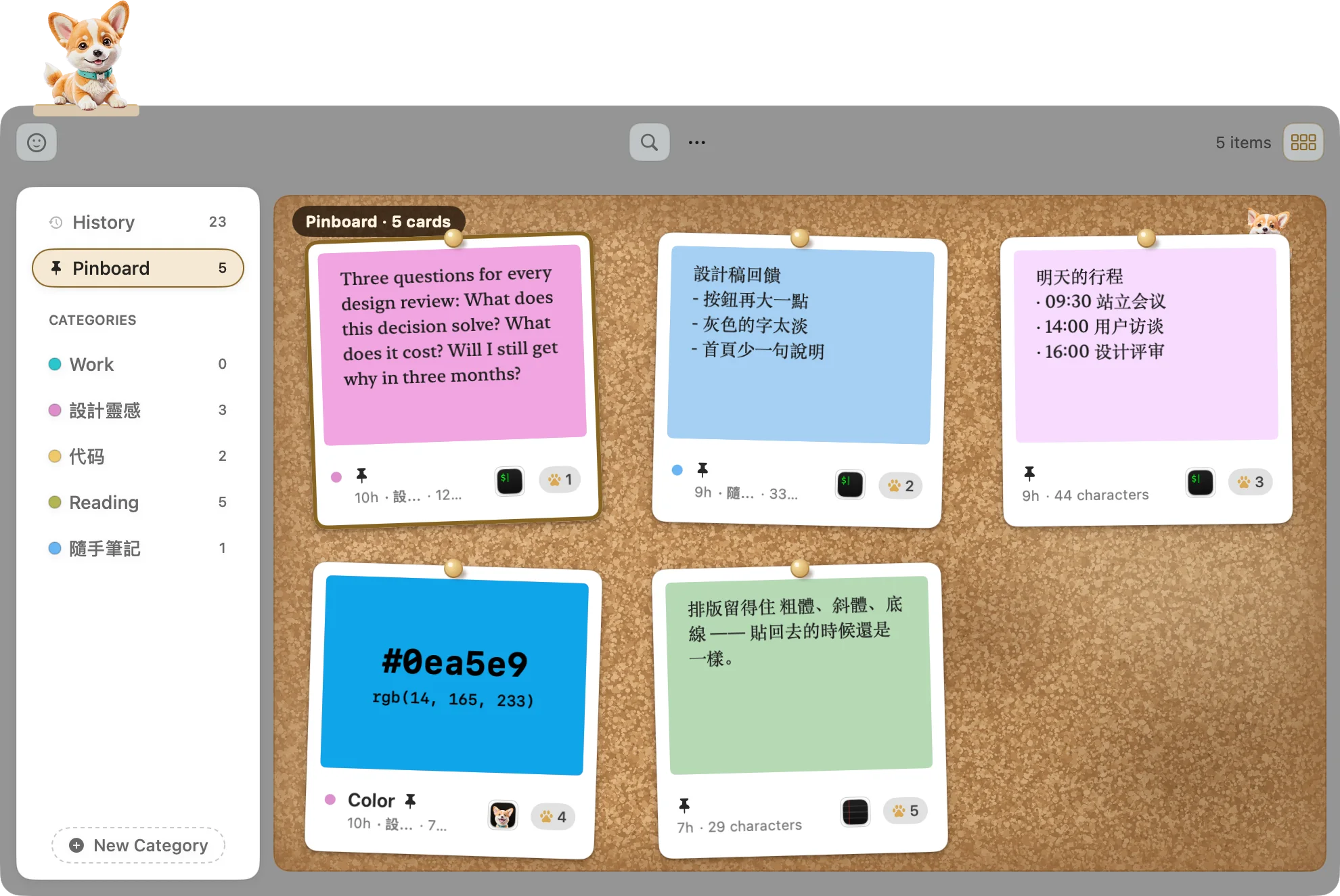
Pinboard

Pinned cards stay forever and are never cleaned up automatically. You can drag them into any order.

Pinboard
No.403

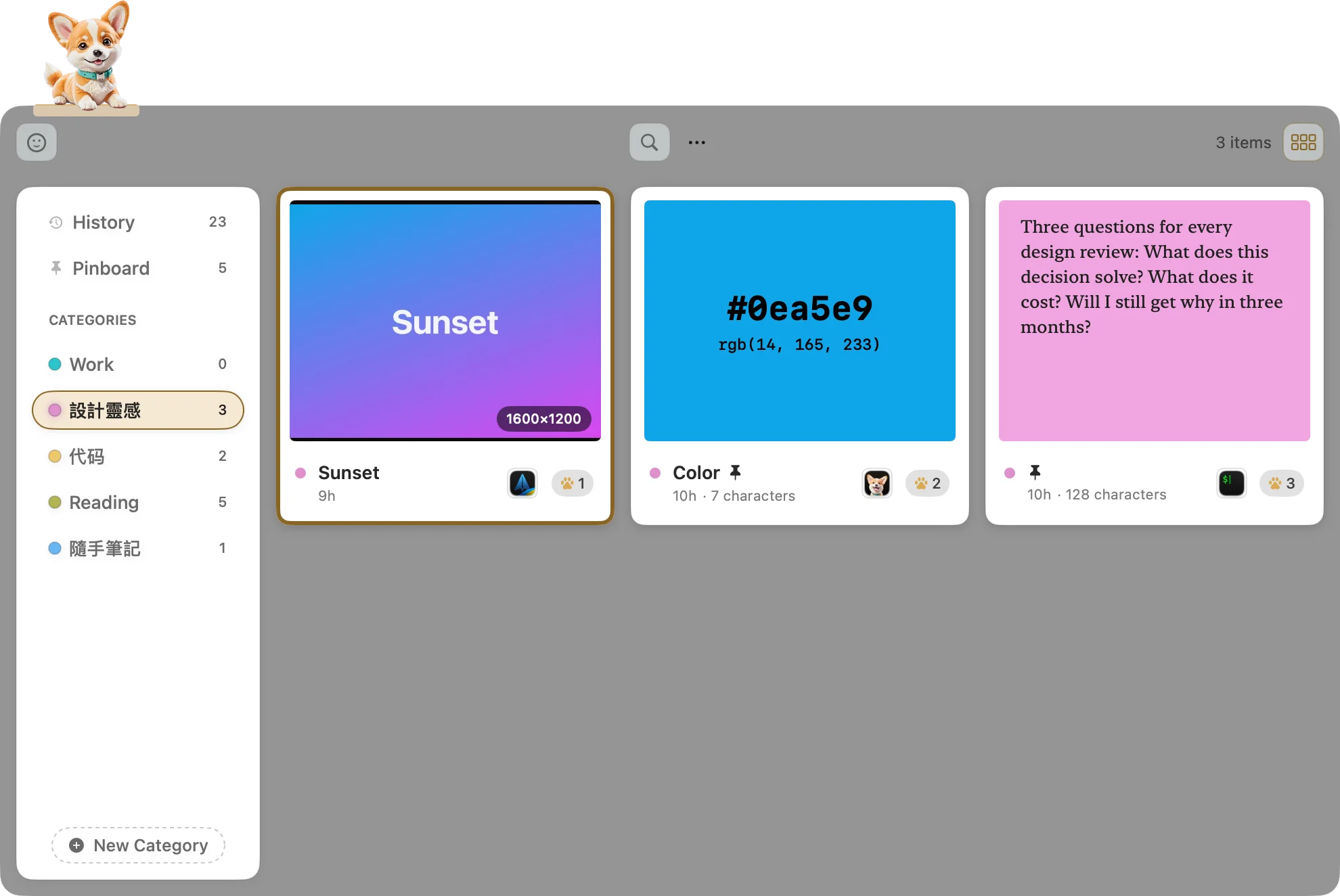
Categories

Make your own, in 16 colors. Rename them and drag to reorder. Drag a card onto a category to file it, or onto Pinboard to pin it. Deleting a category doesn’t delete its cards.

A category
No.404

One card, many places

One card can be in History, Pinboard, and a category all at once. Delete it from one place and it’s only removed from that place. It’s really gone when the last place goes.

No.405

Undo

Press ⌘Z to bring back the card you just deleted.

⌘Z

500Finding

No.501

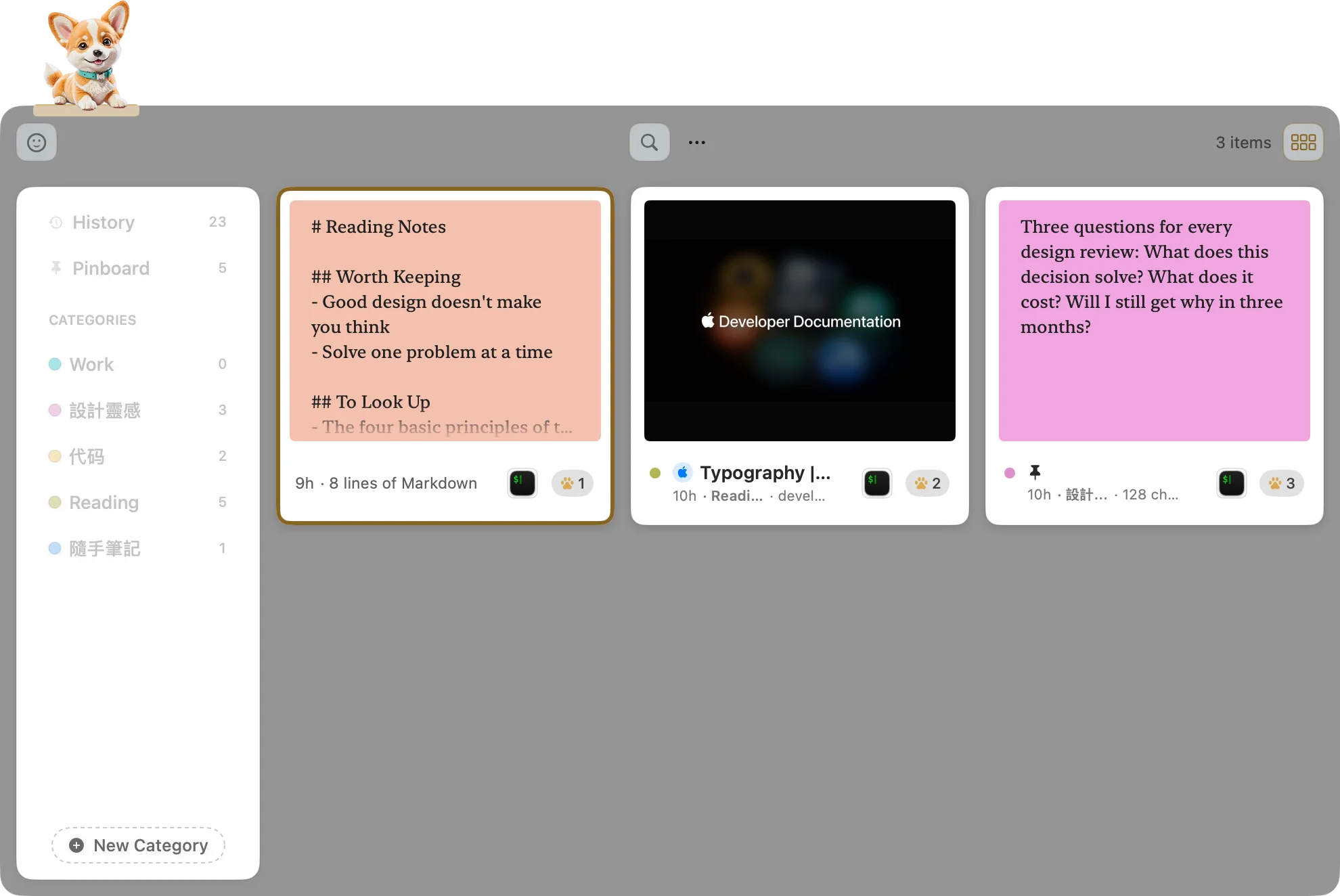
Search

Just start typing, or press ⌘F. Search covers every category, including text inside images, and Traditional and Simplified Chinese match each other. Press Enter to jump to the first result.

⌘F
Search
No.502

Filters

Type filters into the search bar, like type:image or app:safari. The ⋯ menu filters by type and sorts by default order, newest first, oldest first, or name.

No.503

Keyboard

Arrow keys move around. ⇧←→ extends the selection, ⌘-click adds or removes a card, and ⇧-click selects a range.

←→↑↓

600Pasting

No.601

Paste back

Press Return or double-click a card. It pastes back into the app you were just using.

Return
No.602

Plain text

Press ⇧Return to paste without formatting.

⇧Return
No.603

Quick paste

Press ⌘1 to ⌘9 to paste that numbered card right away. Add ⇧ for plain text.

⌘1–9
No.604

Paste several

Select more than one card and they paste out in the order you selected them.

No.605

Traditional ↔ Simplified

Right-click a Chinese card to paste it in Traditional or Simplified. The original card doesn’t change.

No.606

Paste Stack

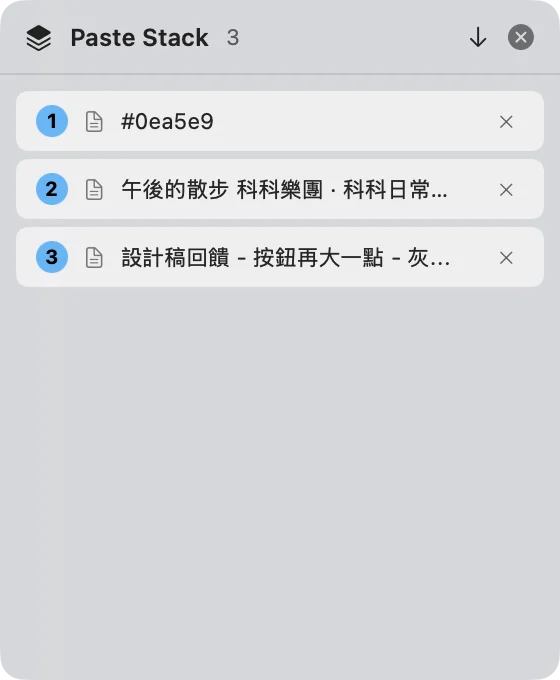
Press ⇧⌘C to start, copy a few things, then press ⌘V repeatedly in the target app. They paste out in order.

⇧⌘C
Paste Stack
No.607

Paste mode

In Settings, choose “paste straight back” or “only put it on the clipboard”. There’s also an “always plain text” option.

No.608

Drag out

Drag a card into another app or into Finder. In Finder it becomes a real file: Markdown as .md, JSON as .json, other text as .txt, links as .webloc, RTF as .rtf, and images and files keep their original format.

No.609

Sounds

Copying and pasting each have a small sound. You can turn them off.

700Preview (Space)

No.701

Quick look

Press Space. Small things (text, code, JSON, colors, small images) open in a small window next to the card. Bigger ones open in a large window in the center. Use ← → to switch cards without closing it.

Space
No.702

Web pages

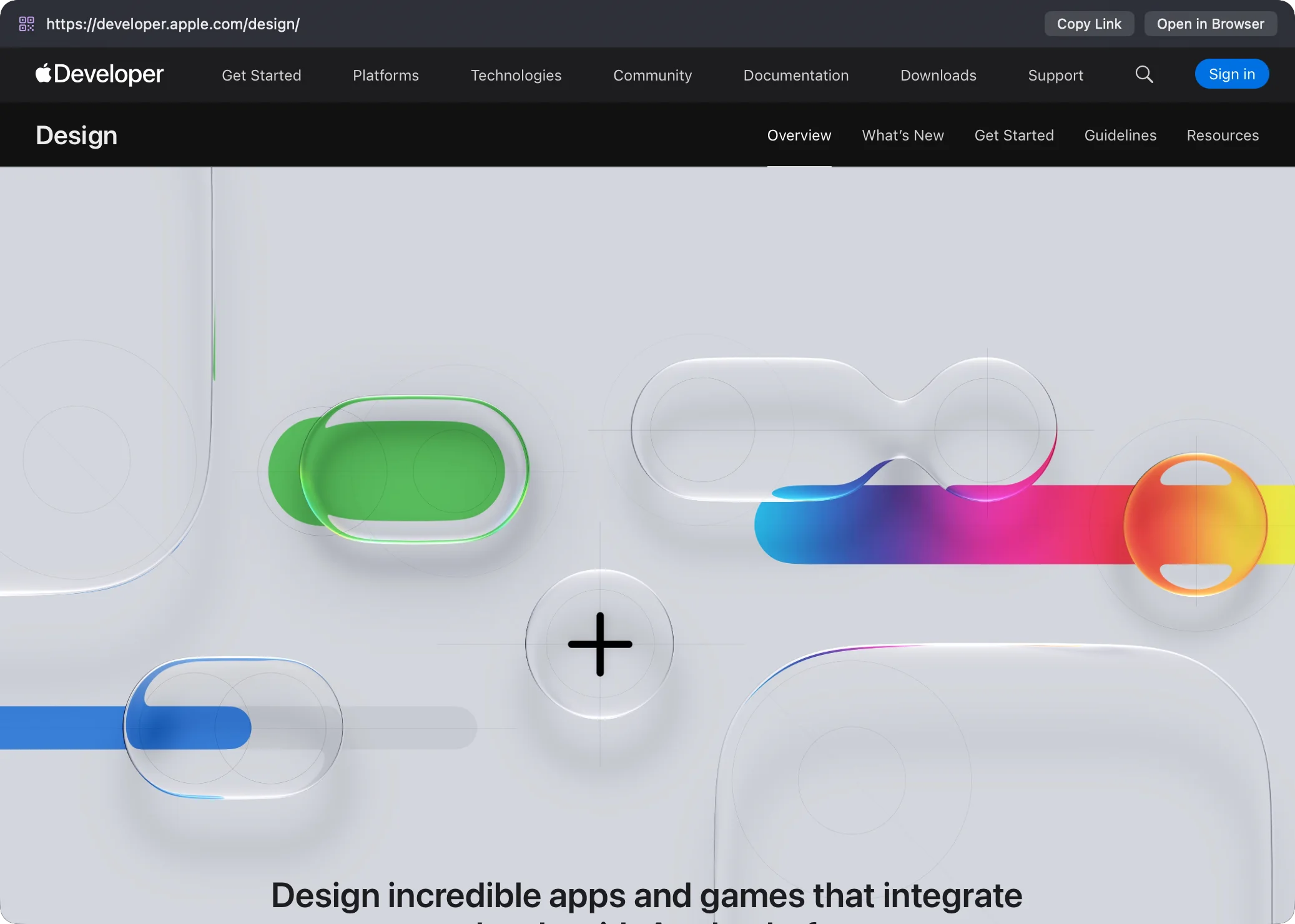
Links open as real web pages, in a private session. YouTube and bilibili play right there, and closing the window mutes them.

No.703

Markdown

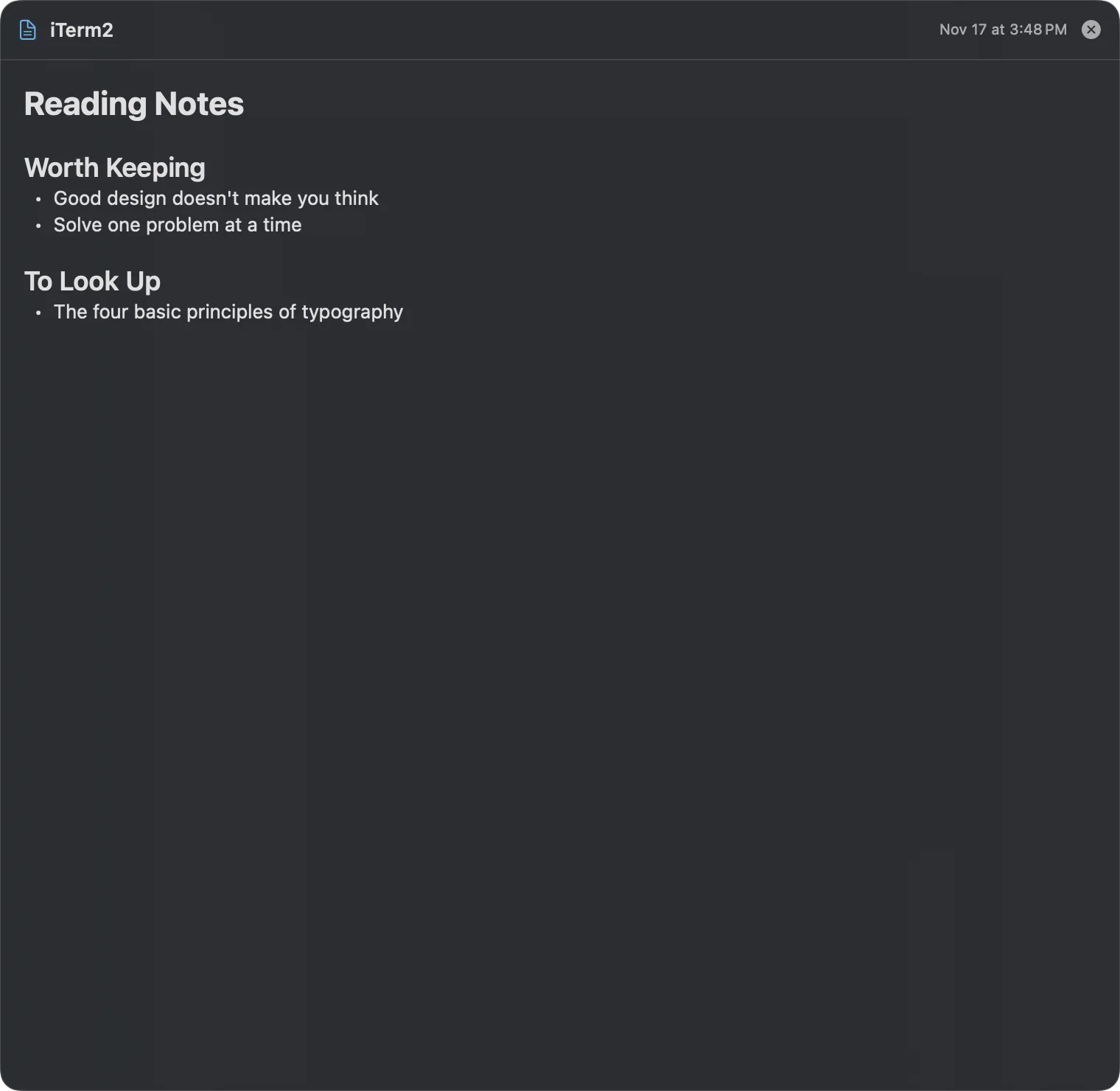
Rendered as headings, lists, quotes, code, and tables.

Markdown preview
No.704

Images

Shown to scale, with an info bar and EXIF data. Small GIFs animate.

No.705

Documents

PDFs you can page through, Office and iWork files (Word, Excel, Keynote and more), and video with native playback.

No.706

Data

JSON as a collapsible tree (right-click to copy a subtree or a value), CSV and TSV as tables, and color codes as swatches.

No.707

QR codes

If an image has a QR code in it, Space shows what it says. A URL opens as a web preview. Text and Wi-Fi codes can be copied right there.

QR code preview

800Editing

No.801

Edit text

Press ⌘E to edit a text or link card. Bold is ⌘B, italic is ⌘I, underline is ⌘U, and there’s strikethrough too. Once you add formatting, pasting into Pages or Word keeps the style.

⌘E
No.802

New card

Press ⌘N for a blank text card.

⌘N
No.803

Rename

Press ⌘R to rename a card in place.

⌘R
No.804

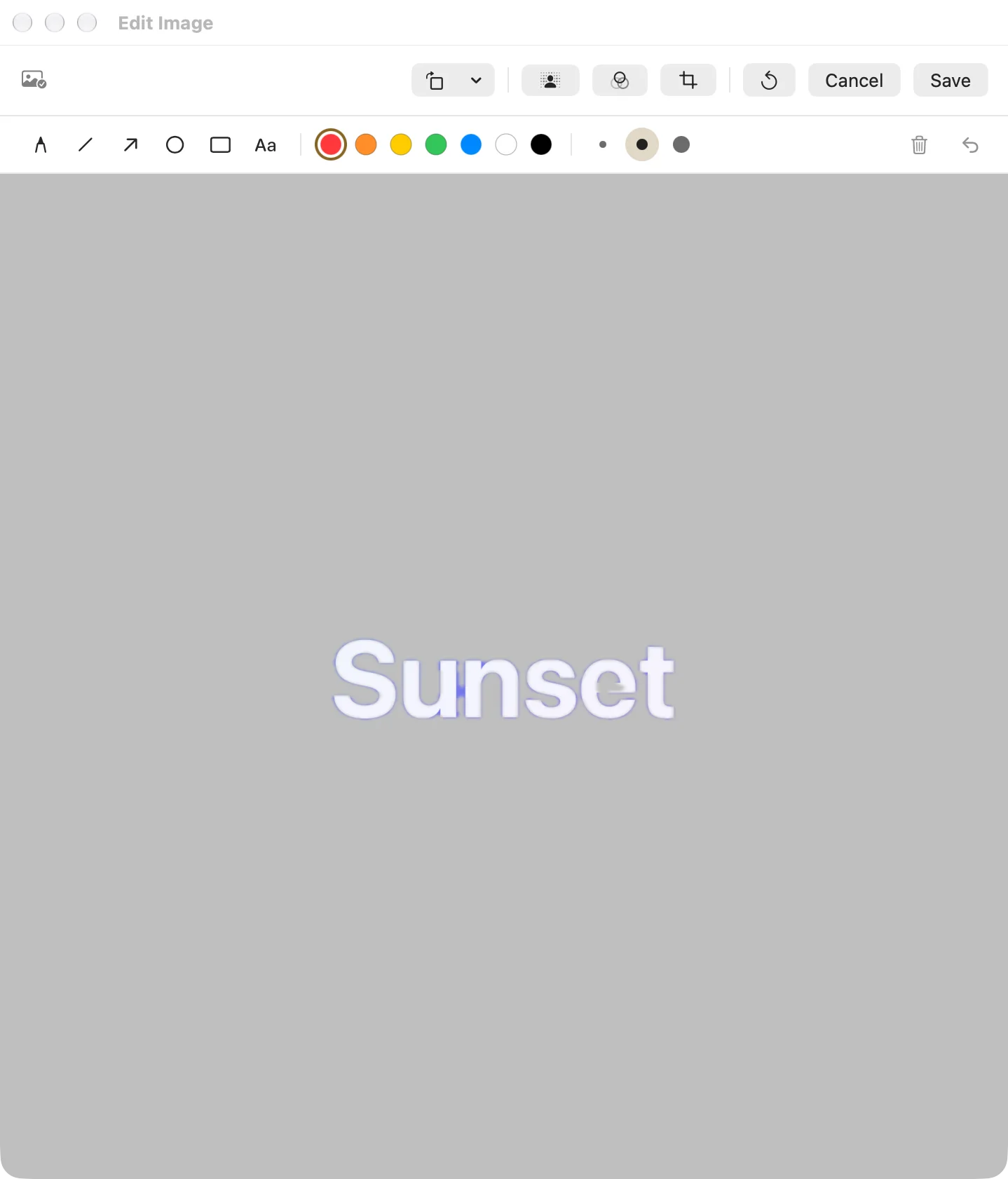
Image editor

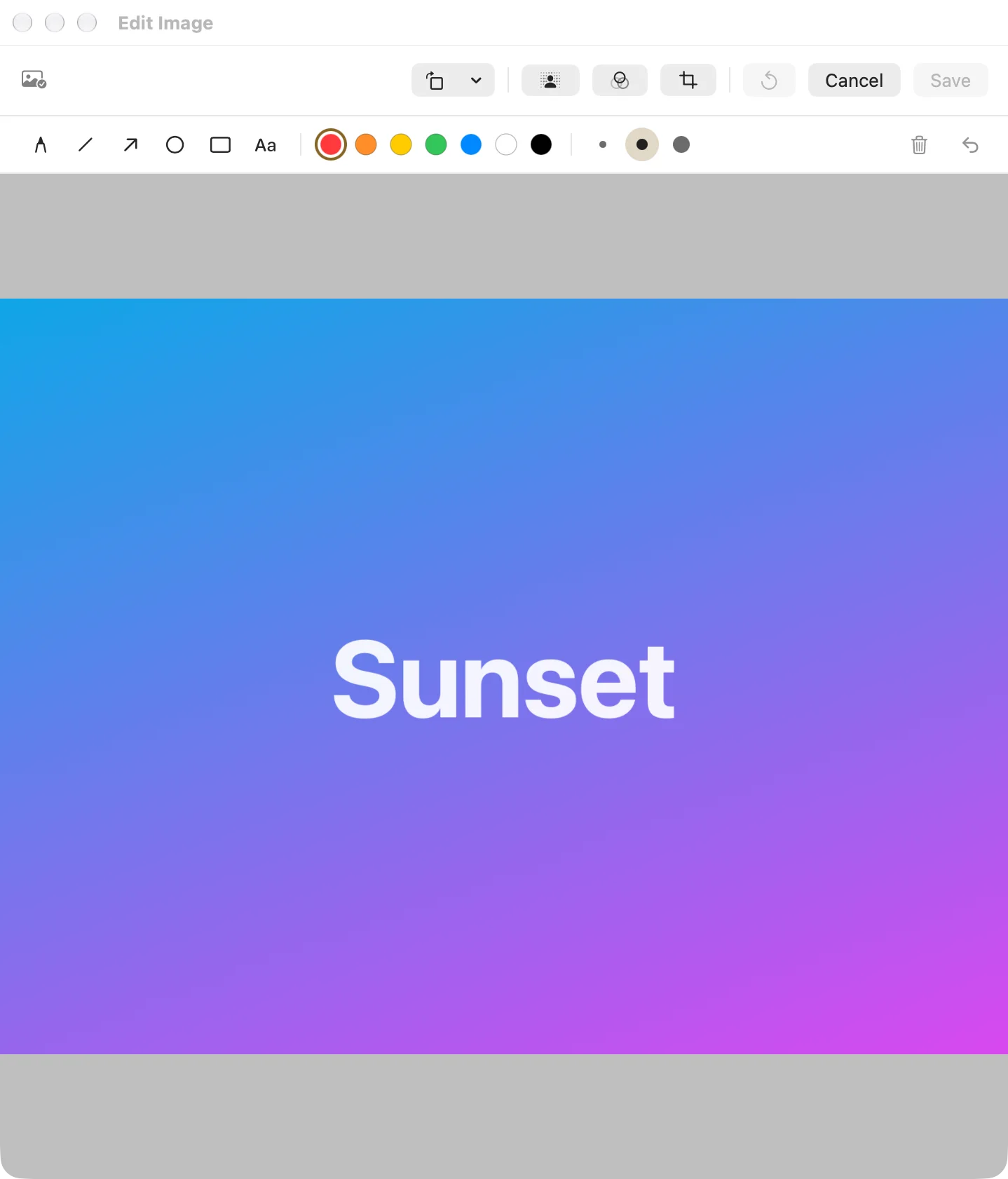
Press ⌘E on an image card. You can crop, rotate 90°, flip, and resize (keep proportions, 50%, or 75%). There are 8 filters, background removal, and Markup for annotations. It all works at full resolution.

⌘E
Image editor
No.805

Remove background

Right-click an image card to remove its background in one click.

Background removed
No.806

Unsaved changes

If you edited an image and try to close it, MemorGi asks first.

900iPhone & iCloud

No.901

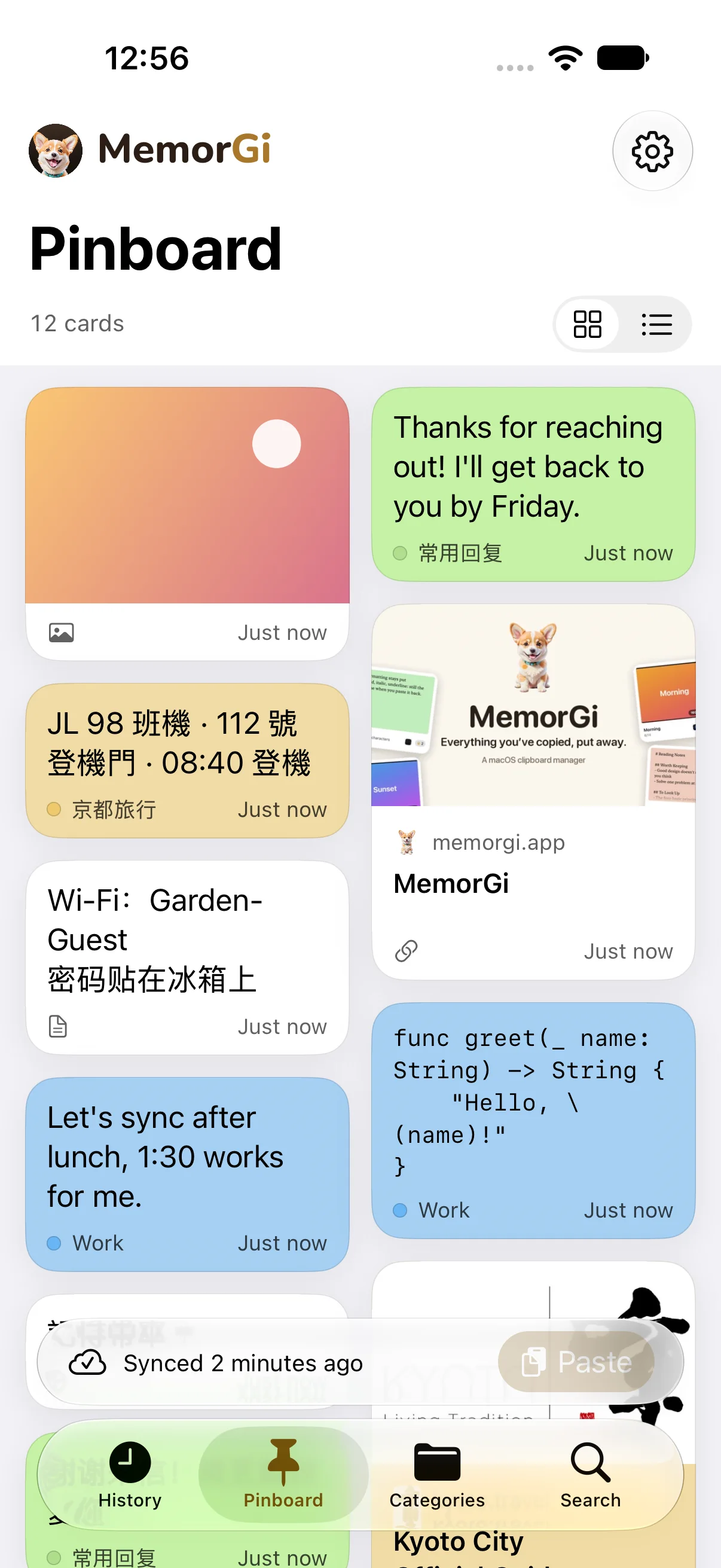
The iPhone app

It comes with the same purchase. Four tabs: History, Pinboard, Categories, and Search. Tap a card to copy it. Press and hold for a full-screen preview, editing, rename, or a different category. Swipe a row to delete it.

iPhone app
No.902

iCloud sync

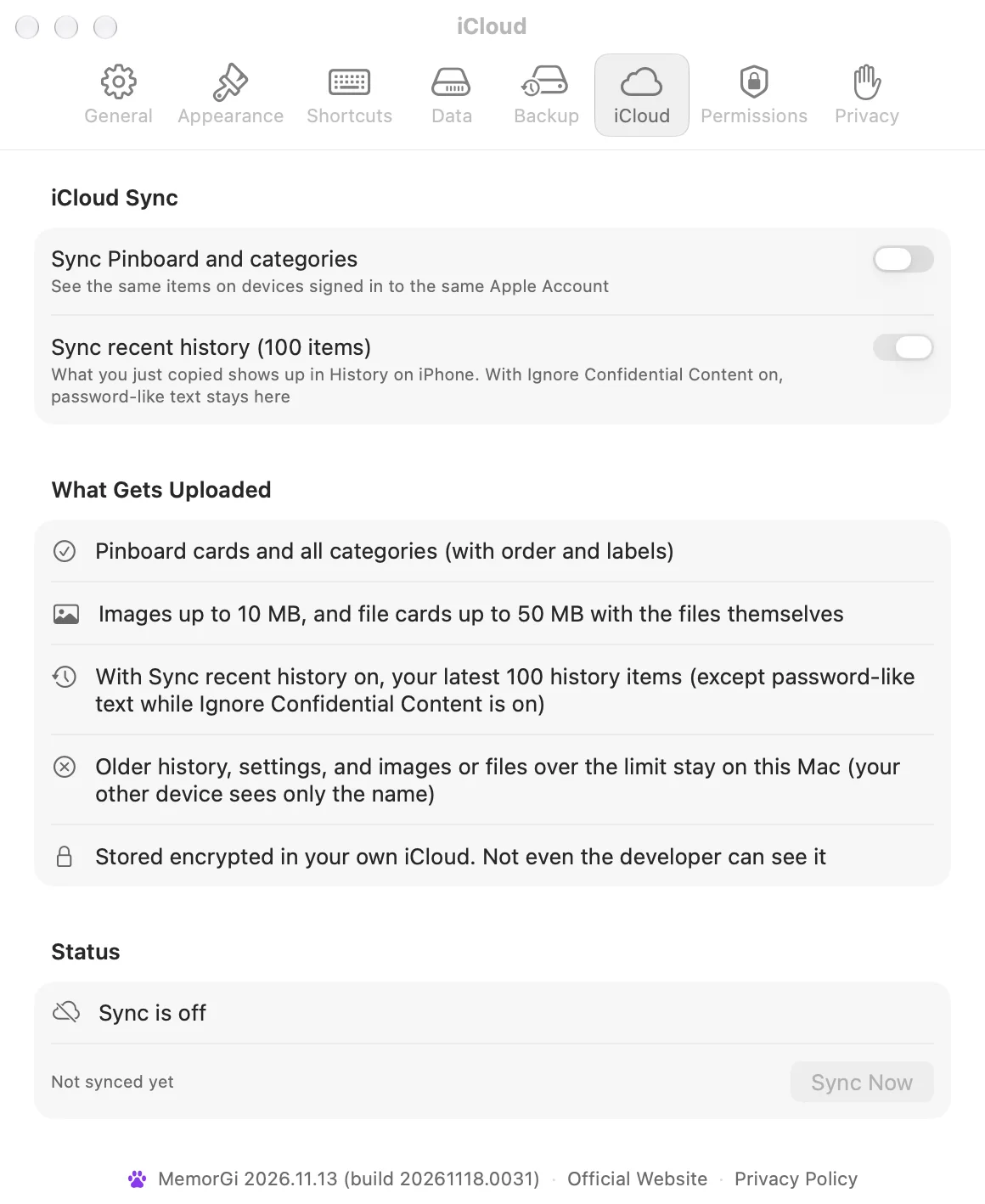
Off by default. Turn it on in Settings › iCloud on your Mac. It syncs your Pinboard, your categories, and your 100 most recent history items (switch off “Sync recent history” to skip those). Everything goes through your own private iCloud database, and content is encrypted on your devices.

No.903

Collect on iPhone

When you open the app, anything new on the clipboard goes into History (it asks the first time). The share sheet takes text, links, images, and files, up to 10 at a time, and puts them in Pinboard.

No.904

Widgets

The iPhone widget shows your latest Pinboard cards, and a tap copies one. On Mac there’s a desktop widget and Control Center controls for recent cards and pausing recording.

No.905

Shortcuts

On Mac: open the panel and search, pause or resume recording, and get the most recently copied text. On iPhone: search, get Pinboard text, and add to History. You can tie that last one to Back Tap.

1000Settings

No.1001

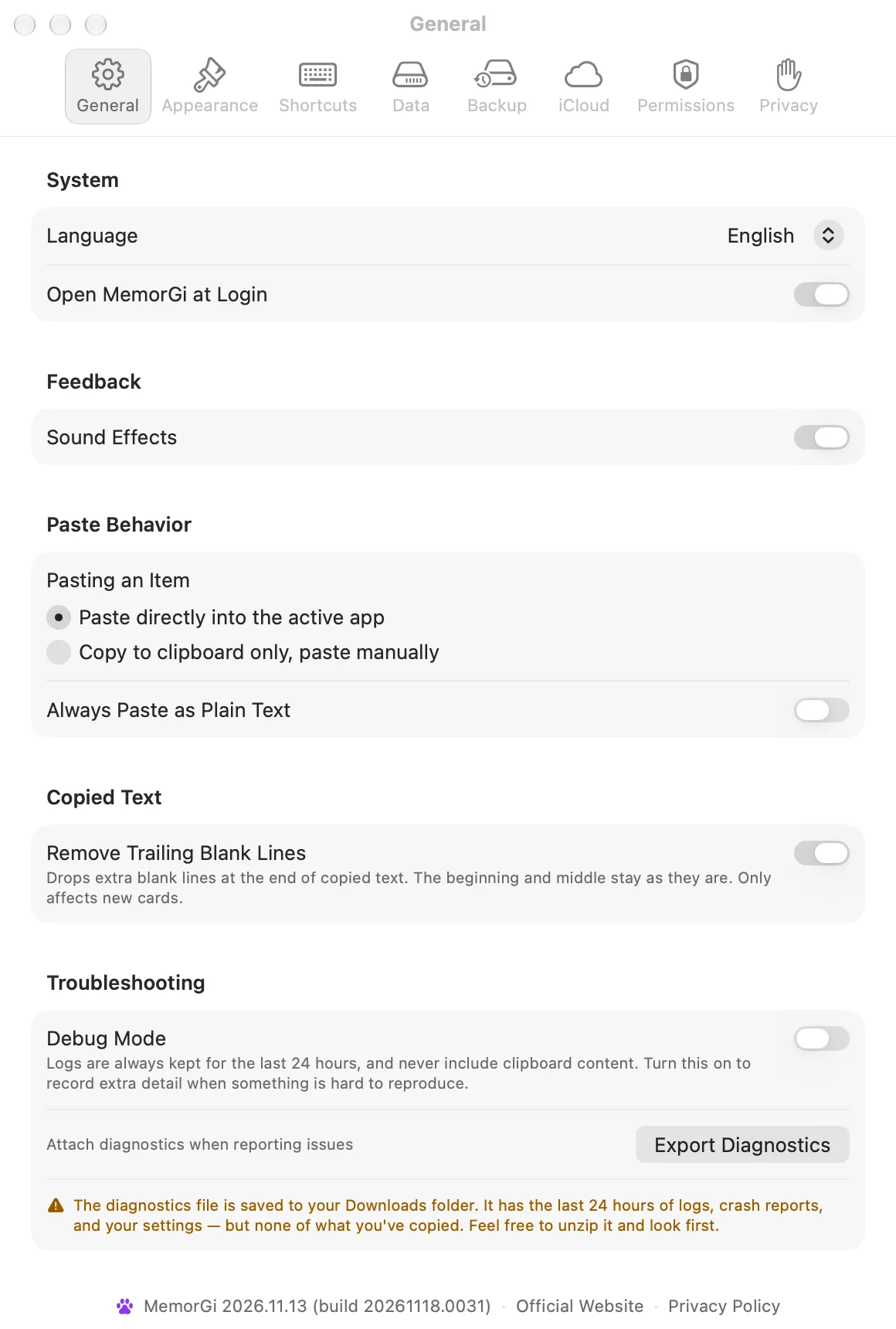
General

Language, launch at login, sounds, how to paste, trimming trailing blank lines, and exporting diagnostics (no clipboard content included).

Settings: General
No.1002

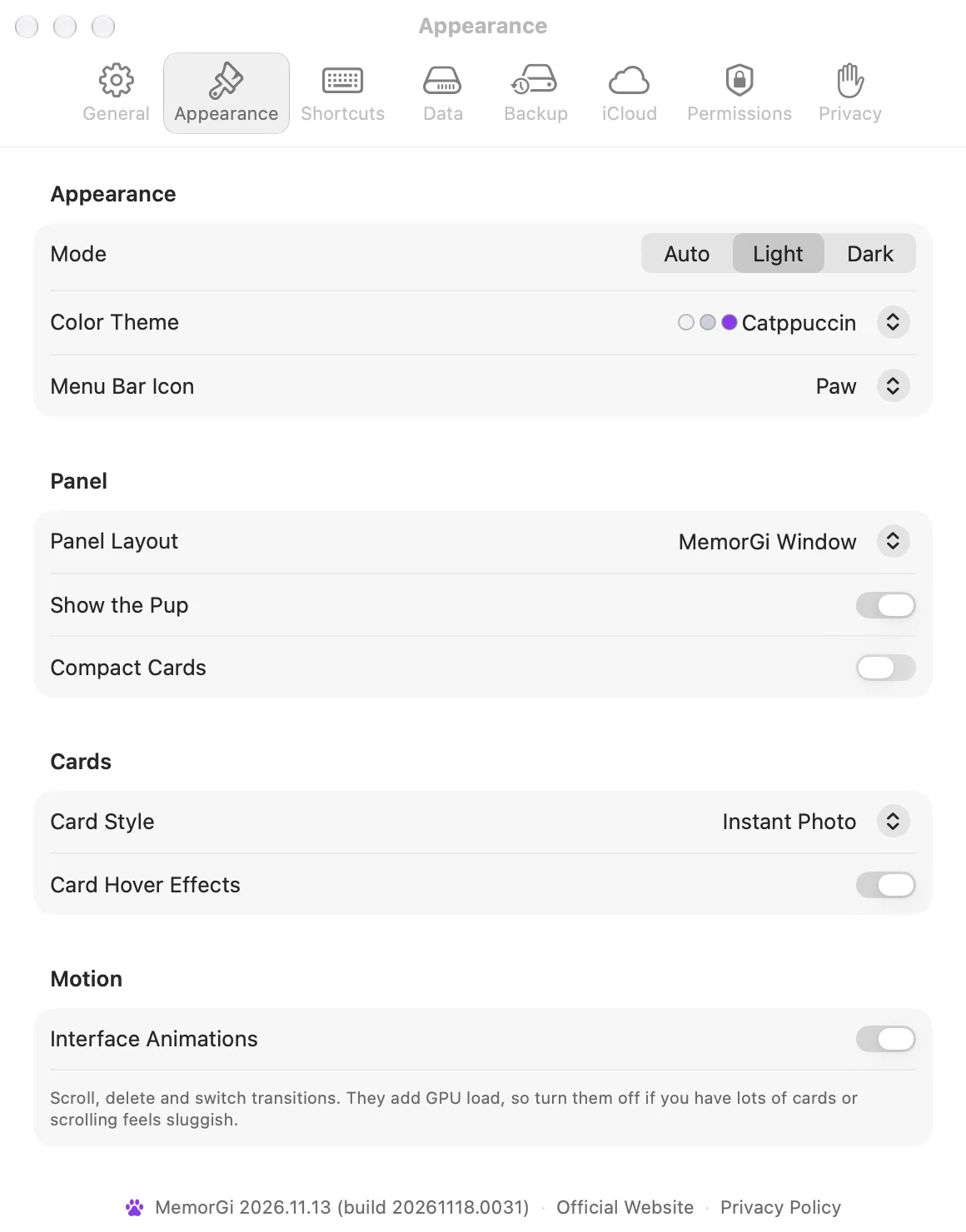
Appearance

Light/dark, themes, layout, the corgi on the panel, card style, compact cards, hover, animations, and the menu bar icon (paw print or corgi face).

Settings: Appearance
No.1003

Shortcuts

Set your own global shortcuts. Click one to record a new key combo, and MemorGi tells you if it conflicts.

No.1004

Data

How long to keep history (items and days), clearing history, and where your data lives.

No.1005

Backup

Export by hand, or turn on daily automatic backups (off by default, keeps 7), and restore. Backup files aren’t encrypted.

No.1006

iCloud

The sync switch, syncing recent history, sync status, and clearing your cloud data.

Settings: iCloud
No.1007

Permissions

The status of each permission and where to turn it on, plus the folder permission for file cards.

No.1008

Privacy

Showing or hiding the panel during screen sharing, link previews, ignoring confidential and temporary content, ignoring Universal Clipboard, and excluding apps.

Settings: Privacy

1100More

No.1101

Stats

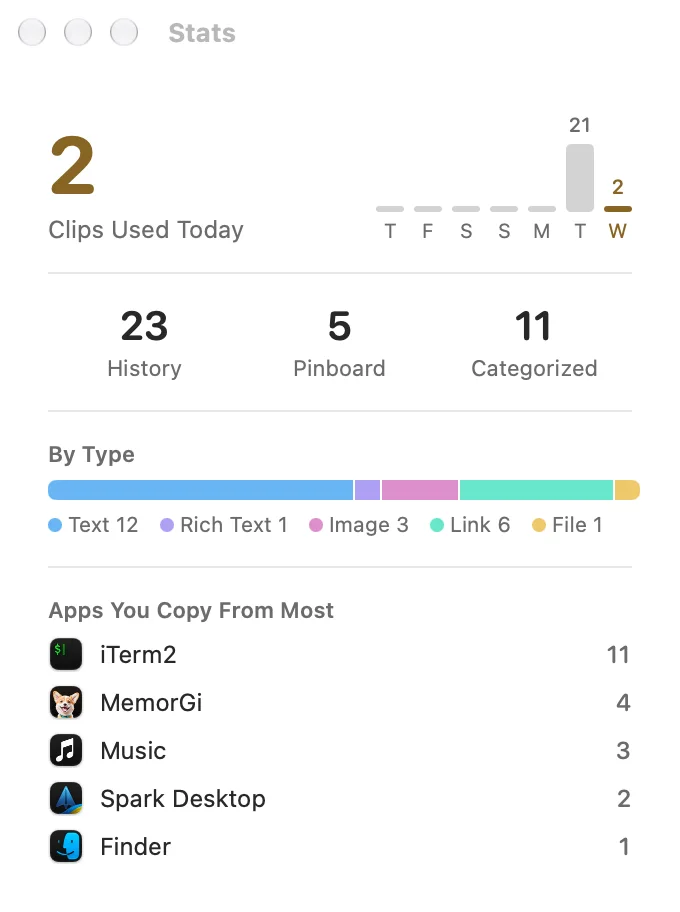
Cards used today, your total, a breakdown by type, a 7-day bar chart, and your top 5 source apps.

Stats
No.1102

Keyboard shortcuts list

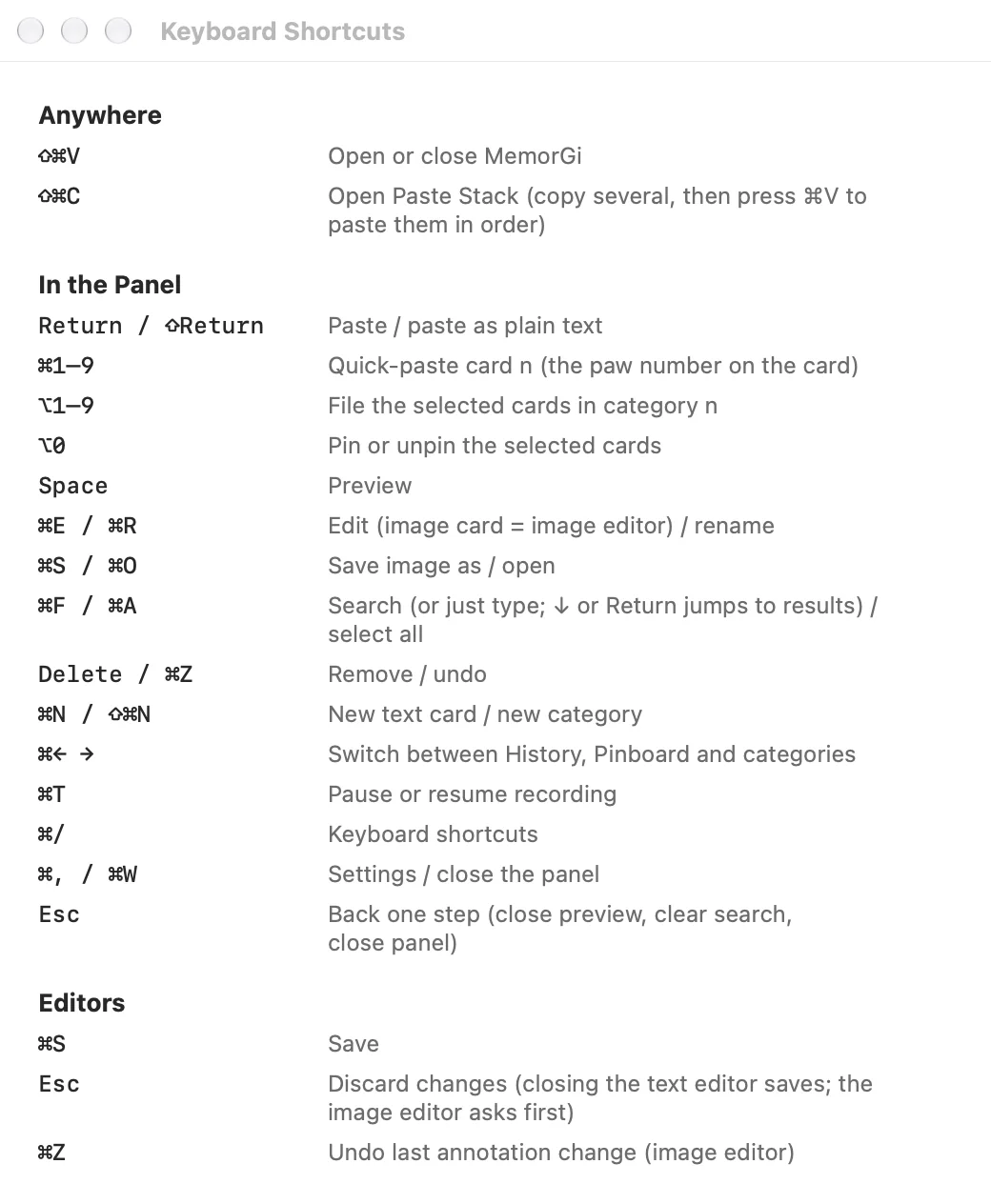
Press ⌘/ to see every shortcut.

⌘/
Keyboard shortcuts
No.1103

Updates

Always through the Mac App Store.